
Guides › Screen Time
Always Allowed on iPhone: keep calls, Maps and Messages when everything else locks
Takes about 2 minutes to set up · 4 min read
Always Allowed is the list of apps and people Screen Time never blocks. Go to Settings › Screen Time › Always Allowed, then tap Add Apps or Add People; to take something off, tap Edit. On our iOS 27 test phone the list started with FaceTime, Phone, Maps and Messages — so calls, directions and texts keep working while your schedule has everything else switched off.
What Always Allowed does
iOS's description on the page: "These apps and people will always be allowed, even during bedtime and when device usage is paused." Apple's guide puts it more plainly: you can use these apps and contact these people at all times, regardless of any Screen Time Schedules or Time Allowances you've set.
That's two things at once:
- Downtime allowed apps. Outside your Screen Time Schedule windows (the hours that used to be Downtime), only Always Allowed apps work.
- No daily cap. A Time Allowance doesn't count against them either.
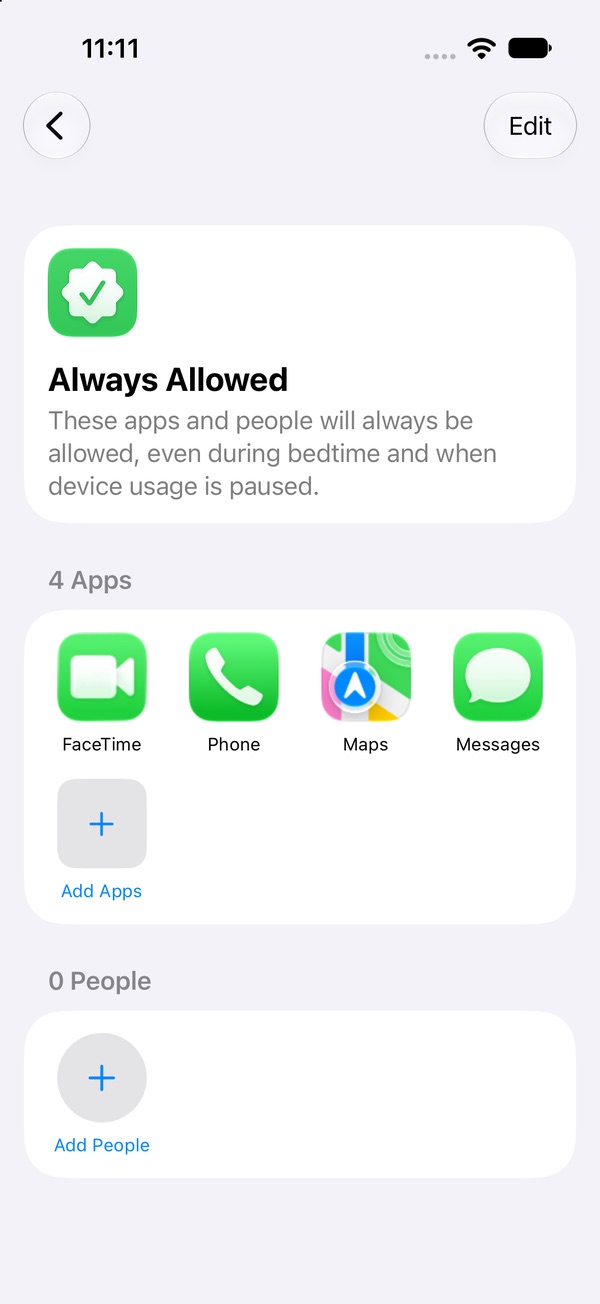
How to allow certain apps in Screen Time
- Open Settings › Screen Time › Always Allowed.
- Under the app list, tap Add Apps.
- Pick the apps you want (there's a Select All button at the bottom — skip it).
- Tap ✓.
You can also get here from inside a schedule: open any time window in Screen Time Schedule and tap the Always Allowed row to see what will still work during those hours.
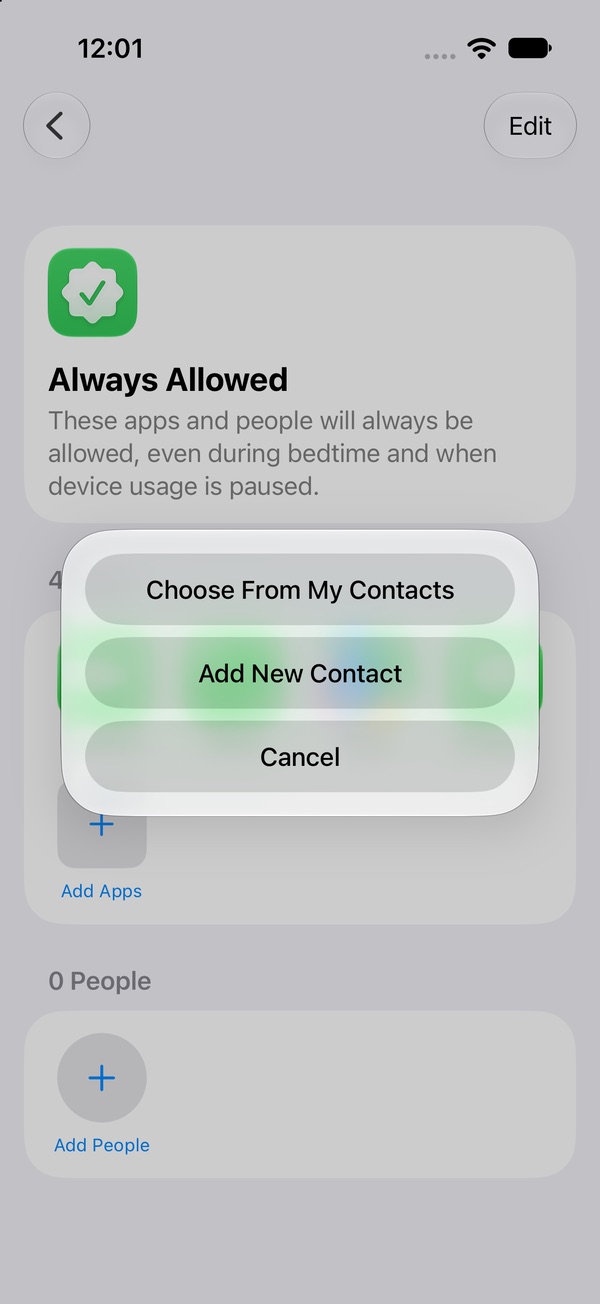
How to always allow a person
- On the same page, tap Add People.
- Choose Choose From My Contacts or Add New Contact.
Apple's example is adding family members, or the Health app, for emergencies.
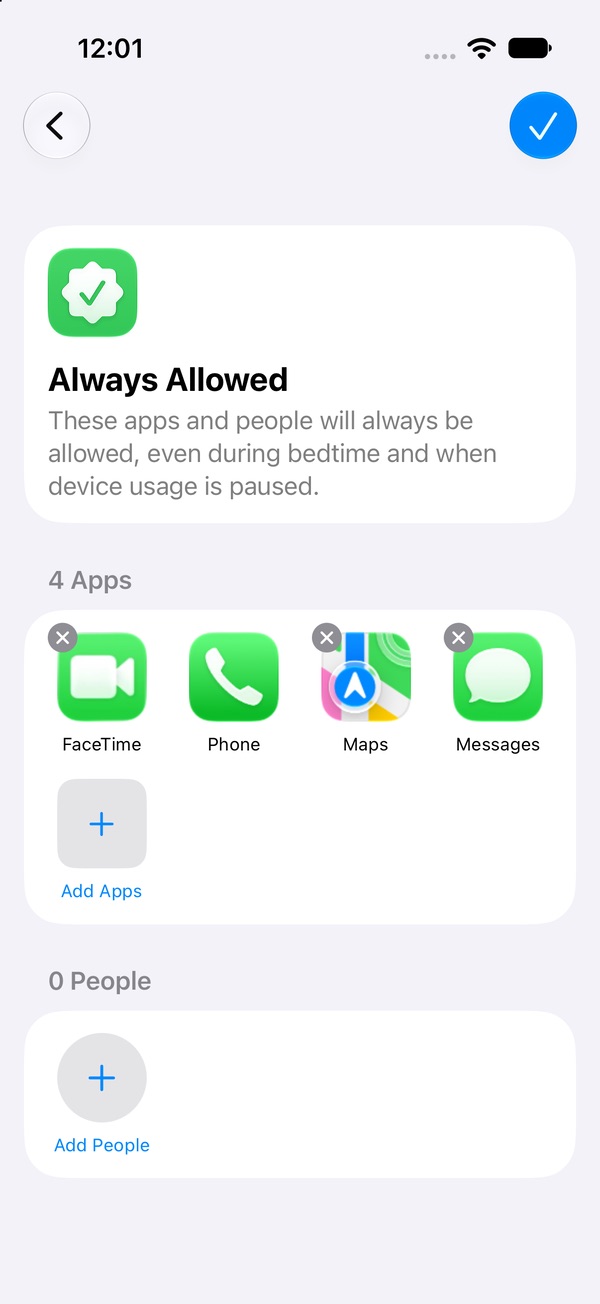
How to remove an app from Always Allowed
- Tap Edit in the top corner.
- Tap the ✕ on the app you want off the list.
- Tap ✓.
On our test phone, Phone had no ✕, so it stays on the list. FaceTime, Maps and Messages each had one.
What to put in Always Allowed (and what to leave out)
Every app on this list skips your schedule and your limits, so the list works best short and boring.
Good candidates
- Phone, Messages, Maps — already there.
- Your alarm or clock app, so morning still happens.
- A sleep-sounds or meditation app, if you fall asleep to one.
- A reading app — the thing you'd rather do at 11 PM than scroll.
- Anything you need for safety or health: the Health app, an authenticator you use to log in to work.
Leave these out
Your feed apps. TikTok, Instagram, YouTube, X, the shopping app with the daily deals. It's tempting to add one "just in case someone sends me something." That one app then has no schedule and no limit, and "just in case" is exactly the mood you'll be in at midnight. If someone really needs to reach you, they can call or text — and those are already allowed.
Always Allowed stopped working? It depends on App & Website Activity. iOS warns that turning that off disables Time Allowance and Always Allowed. Fix Screen Time that isn't working →
Want a shorter list to manage?
Always Allowed is one piece of a bigger setup: a Schedule with time windows, categories built in Time Allowances, a passcode someone else holds, and this list to keep honest. Pactroll flips it around: pick only the apps you want locked, tap lock, done. Everything else stays normal, and the locked apps stay locked until you decide to unlock them, even when Pactroll is closed.
Get Pactroll on the App StoreFAQ
How do I allow certain apps during Screen Time downtime?
Settings › Screen Time › Always Allowed › Add Apps, pick them, tap ✓. They stay available outside your Screen Time Schedule windows.
Which apps are always allowed by default?
On our iOS 27 test iPhone: FaceTime, Phone, Maps and Messages.
Do Always Allowed apps ignore Time Allowances too?
Yes. Apple says they're available at all times, regardless of any Screen Time Schedules or Time Allowances.
How do I remove an app from Always Allowed?
Tap Edit, tap ✕ on the app, then ✓. Phone couldn't be removed on our test phone.
Can I always allow a person instead of an app?
Yes: Add People, then Choose From My Contacts or Add New Contact.