
Guides › Screen Time
How to use Screen Time Schedule on iPhone (the new Downtime)
Takes about 3 minutes to set up · 5 min read
In iOS 27, Downtime is now called Screen Time Schedule, and it works the other way round. Go to Settings › Screen Time › Screen Time Schedule, turn on Schedule, and set the hours when your apps are allowed. Outside those hours, only your Always Allowed apps open. Want the phone quiet from 11 PM to 6 AM? Set a window from 6 AM to 11 PM.
Downtime vs. Screen Time Schedule: what flipped
Old Downtime: "block apps from 10 PM to 7 AM." You set the hours you were off.
Screen Time Schedule: "apps are allowed from 6 AM to 11 PM." You set time windows when you're on, and for each window you tick which app categories are allowed. Whatever time isn't covered by a window is your downtime — only Always Allowed apps work then.
The upside of the flip: you can split the day. A morning window with everything allowed, a work window with only some categories, an evening window — each one with its own list.
How to turn on Screen Time Schedule
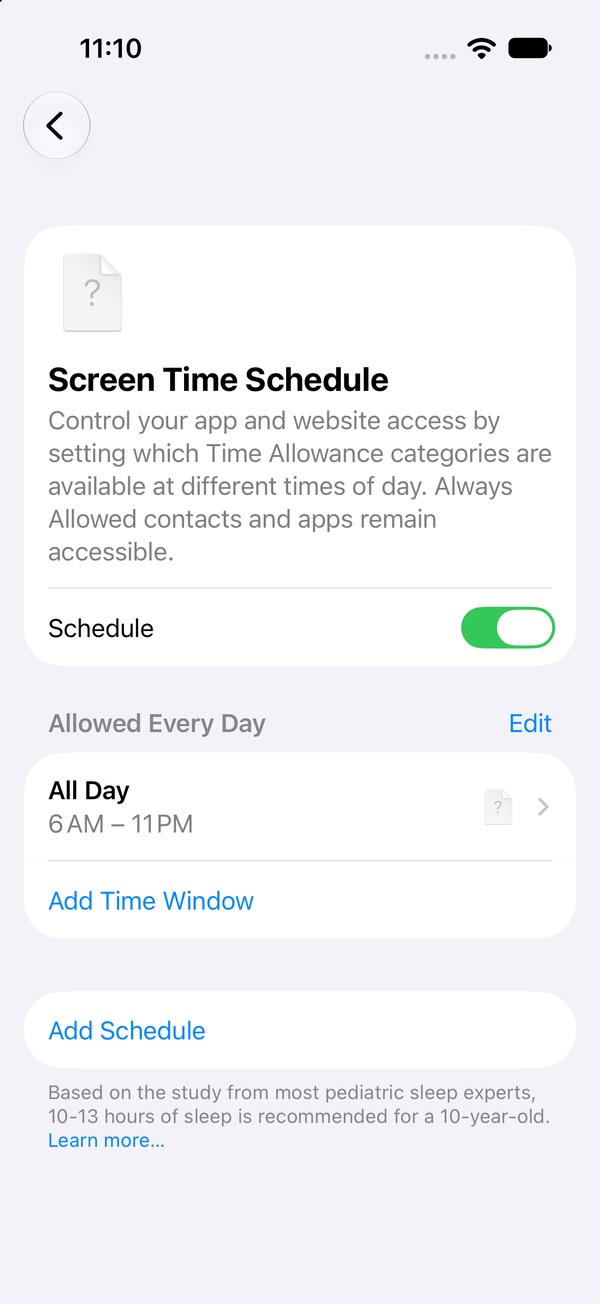
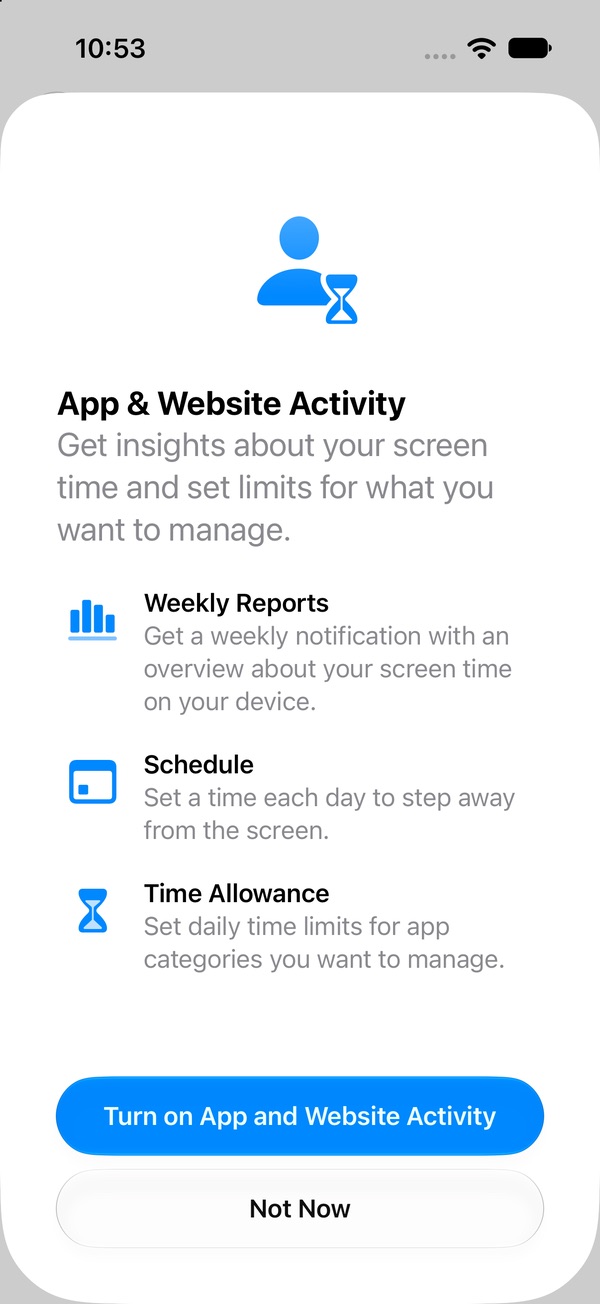
- Open Settings › Screen Time › Screen Time Schedule. If Screen Time isn't on yet, iOS asks you to Turn On App & Website Activity first — tap it.
- Turn on the Schedule switch.
- Under Allowed Every Day you'll see a time window. On our test phone it read All Day, 6 AM – 11 PM.
How to change downtime hours: edit a time window
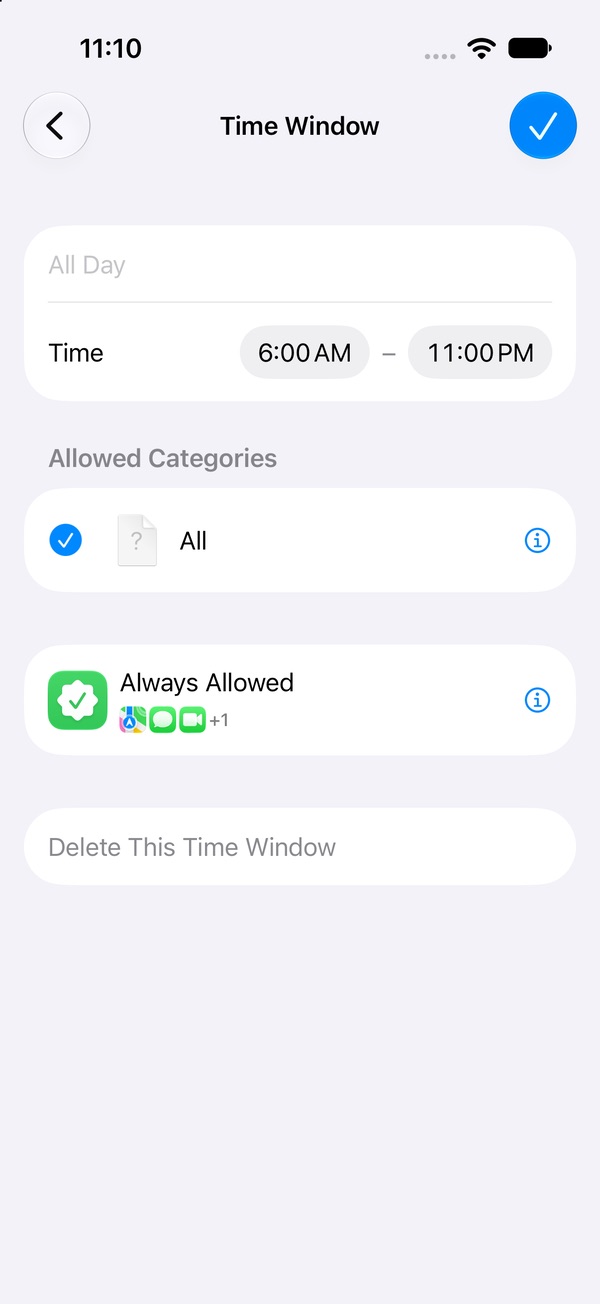
- Tap the time window (for example All Day). The Time Window screen opens.
- Tap the name to rename it ("Day", "Work", "Evening" — whatever helps).
- Tap the start or end time next to Time and pick new values.
- Under Allowed Categories, tick the categories that should work during this window.
- Tap ✓ to save.
To add a second window, tap Add Time Window. To remove one, open it and tap Delete This Time Window.
Example: phone-free from 11 PM to 6 AM
Keep a single window, set it to 6:00 AM – 11:00 PM, tick the categories you use during the day, save. From 11 PM to 6 AM nothing in those categories is allowed; calls, messages and the other Always Allowed apps still work.
Want social media off during work, too? Make two windows — say 6 AM–9 AM and 5 PM–11 PM with everything ticked, plus a 9 AM–5 PM window where Social Media isn't ticked.
Which categories can I allow?
The list under Allowed Categories comes from Time Allowances (the old App Limits). If you only see All, you haven't made any categories yet. Go to Time Allowances › Manage Categories and add Entertainment, Games, Social Media — or a Custom category with just the apps you pick, like TikTok and Instagram. Then come back and tick or untick it per window. How to set up Time Allowances →
Always Allowed: apps that still work during downtime
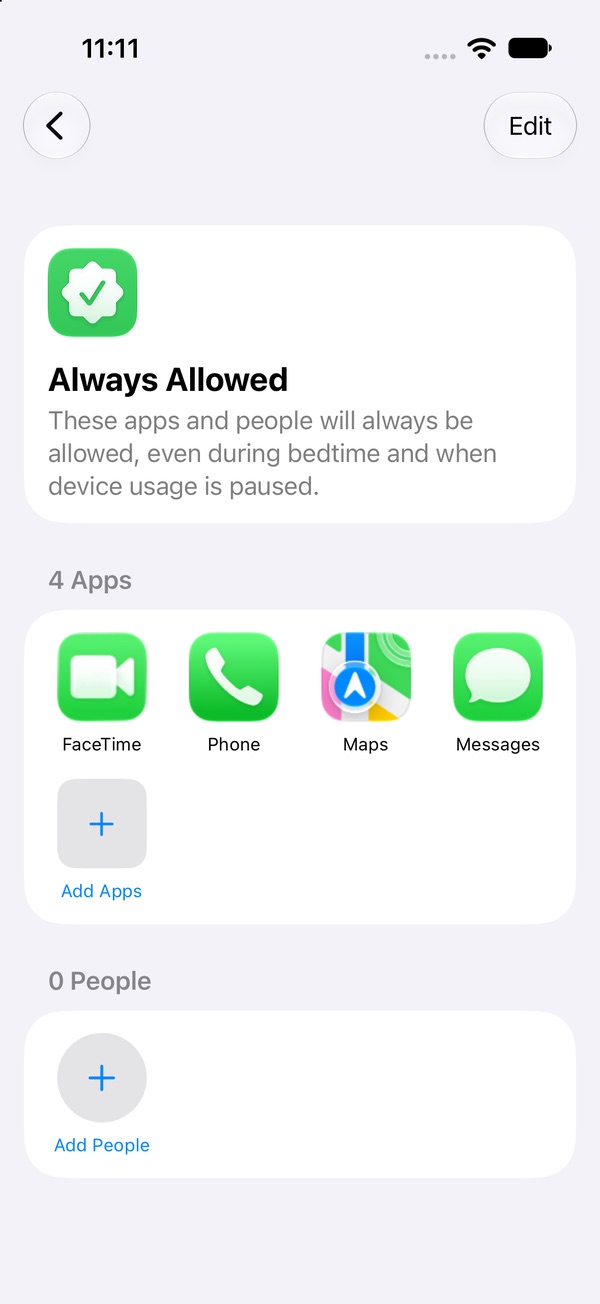
Apple's description: these apps and people "will always be allowed, even during bedtime." The list starts with FaceTime, Phone, Maps and Messages. Change it under Settings › Screen Time › Always Allowed with Add Apps and Add People, or remove something with Edit.
Keep this list short. Every app you add here ignores your schedule.
Different downtime on weekends: Add Schedule
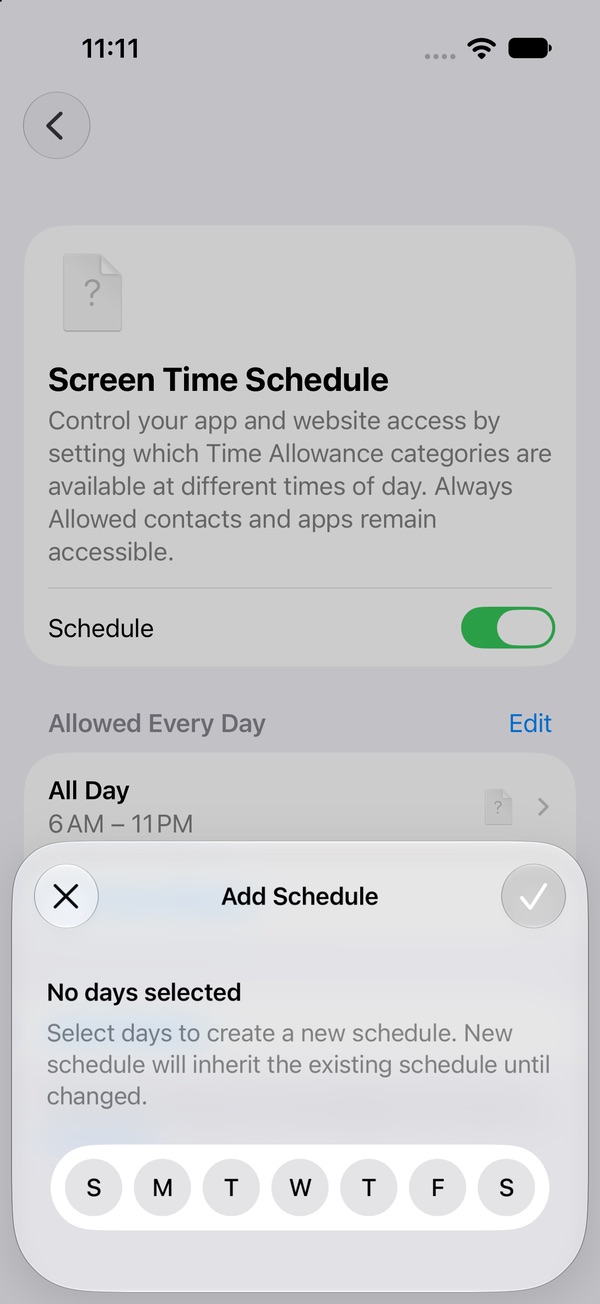
- On the Screen Time Schedule page, tap Add Schedule.
- Tap the days it's for — for example S and S for the weekend.
- Tap ✓. As iOS puts it, the new schedule will "inherit the existing schedule until changed", so it starts as a copy.
- Open its time window and set the weekend hours.
Make it stick: lock the schedule with a passcode
A schedule you can switch off yourself is easy to switch off at 11:05 PM. On older iOS versions this was the "Block at Downtime" problem: Apple notes that by default, Screen Time limits could be ignored once reached. In iOS 27 the fix is the same idea — a Screen Time passcode, which you have to enter before changing the Screen Time settings you chose. The trick is to have someone else set it. Set a passcode you can't talk yourself out of →
We're re-checking the "time's up" screen on iOS 27 and will update this page.
Own an iPad or Mac too? Apple says Screen Time Schedules need version 27 or later on all your Apple devices. With Manage Screen Time › Share Across Devices on, your schedule applies to your iPhone, iPad and Mac.
Not in the mood to build a schedule?
Schedule switch, time windows, allowed categories that only exist once you've built them in Time Allowances, an Always Allowed list, a second schedule for weekends, then a passcode on top. Pactroll skips all of it: pick the apps, tap lock, done. They stay locked until you decide to unlock them, even when Pactroll is closed — and when the urge hits at 1 AM, "I feel the urge" walks you through a short break instead of an argument with yourself.
Get Pactroll on the App StoreFAQ
Where is Downtime in iOS 27?
It's now called Screen Time Schedule: Settings › Screen Time › Screen Time Schedule, then turn on Schedule.
How do I set downtime for the night on iOS 27?
Set a time window for the hours apps should work, for example 6 AM to 11 PM. Everything outside your windows — here, 11 PM to 6 AM — only allows your Always Allowed apps.
Can I have different downtime hours on weekends?
Yes. Tap Add Schedule, pick the days, save, then change that schedule's time windows. It starts as a copy of your existing schedule.
Can I still call and text during downtime?
Yes, if Phone and Messages are in Always Allowed. They're in the list to start with, alongside FaceTime and Maps.
Why don't I see Screen Time Schedule?
Apple says it needs version 27 or later on all your Apple devices. An older iPad or Mac on the same Apple Account can be the reason.