
Guides › Screen Time
How to set Time Allowances on iPhone to limit TikTok, Instagram and games
Takes about 3 minutes to set up · 5 min read
In iOS 27, App Limits are now called Time Allowances, and they limit categories, not single apps. To limit just TikTok or Instagram, make your own category: Settings › Screen Time › Time Allowances › Manage Categories › + › Custom, pick only those apps, then set the minutes with − and +. Then lock it with a passcode someone else knows, or it's a limit you can lift in two taps.
App Limits vs. Time Allowances
Old App Limits let you put a timer on one app. Time Allowances put a daily allowance on a category: Entertainment, Games, Social Media — or a Custom category that holds exactly the apps you choose. So a "category" can be one app. Apple adds that if an app has a website it declares, the allowance covers both.
Step 1: Turn on App and Website Activity
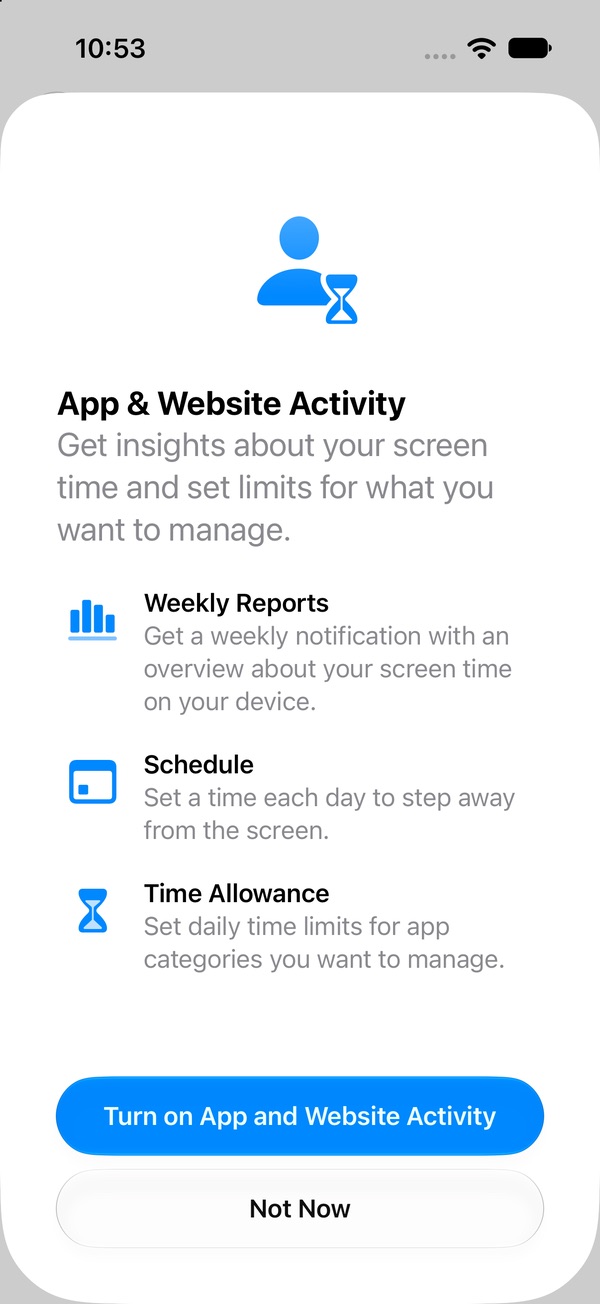
Open Settings › Screen Time › Time Allowances. The first time, a sheet explains what App & Website Activity does (Weekly Reports, Schedule, Time Allowance). Tap Turn on App and Website Activity.
Step 2: Make a category for the apps you want to limit
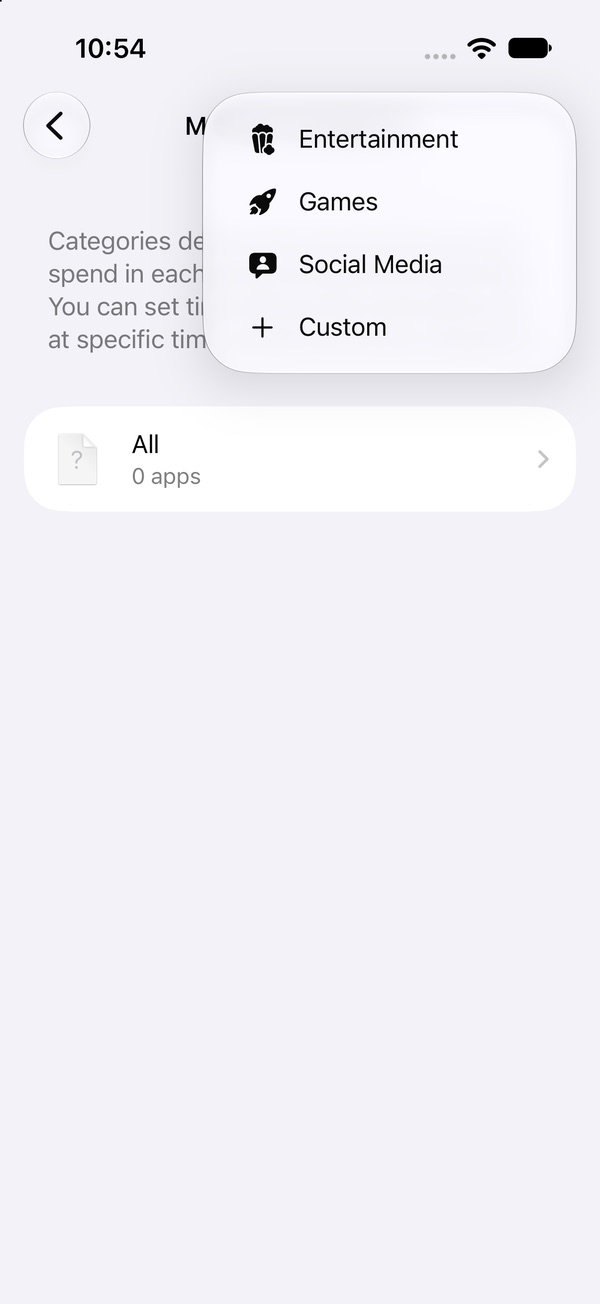
- Tap Manage Categories, then + in the top corner.
- Choose Entertainment, Games or Social Media for a broad limit — or Custom to pick the apps yourself.
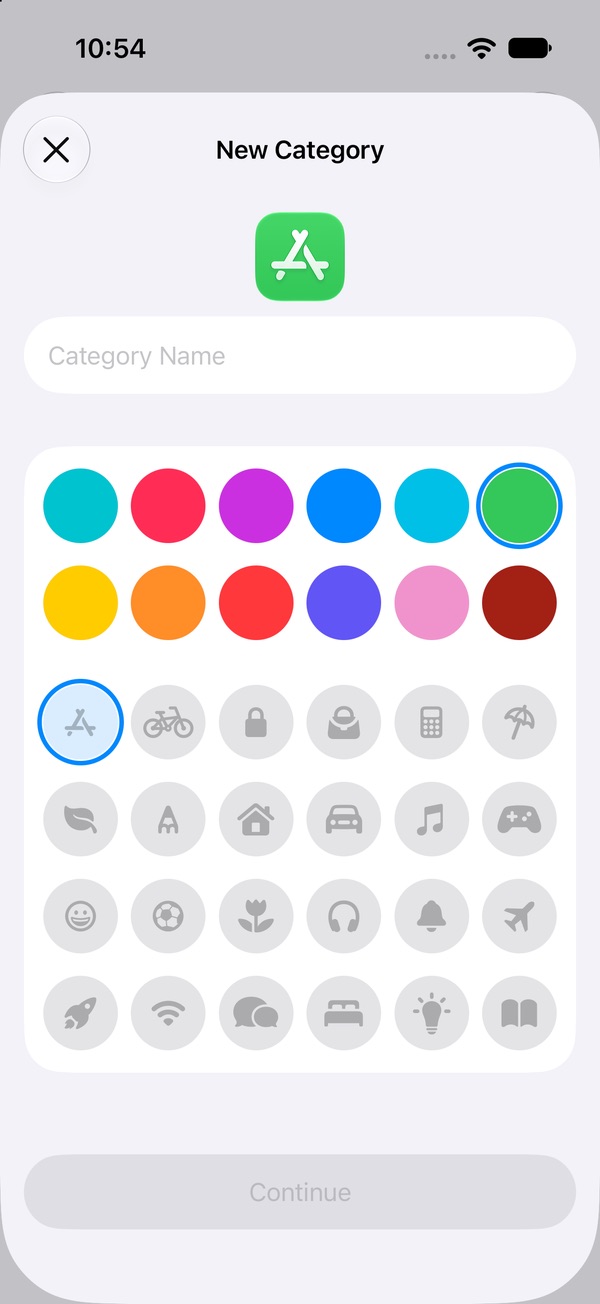
- For Custom: type a Category Name (say, "Scroll apps"), choose a colour and an icon, tap Continue.
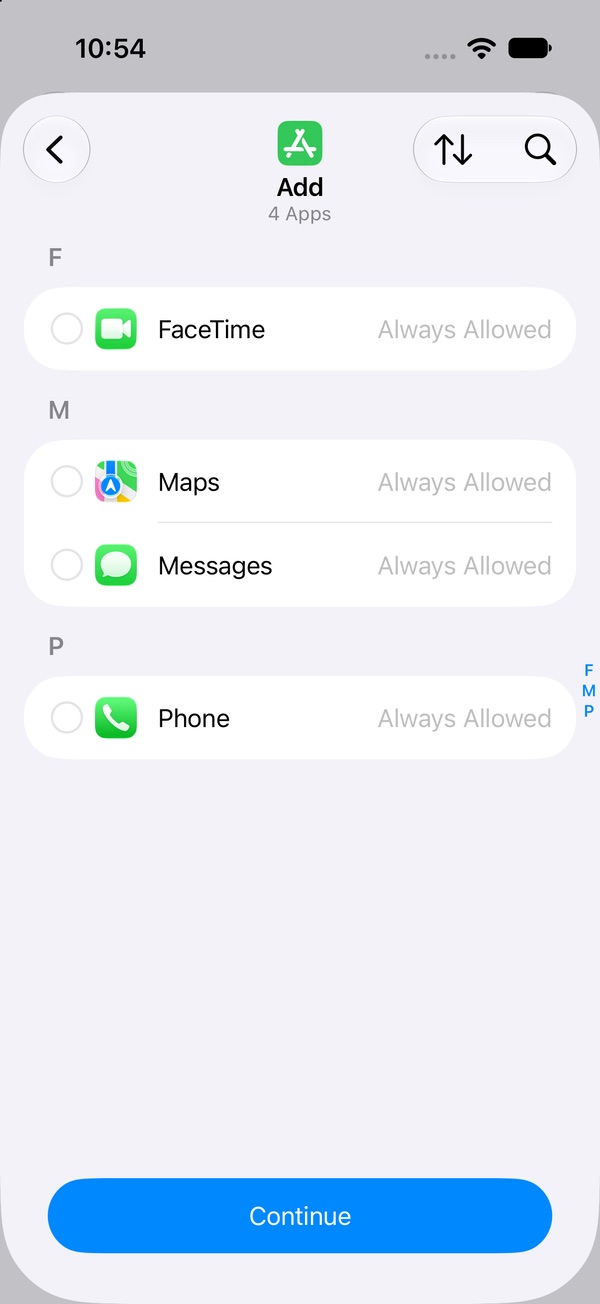
- Tick the apps that belong in it — use the search button to find TikTok, Instagram, YouTube or a game fast — then tap Continue.
Step 3: Set how much time per day
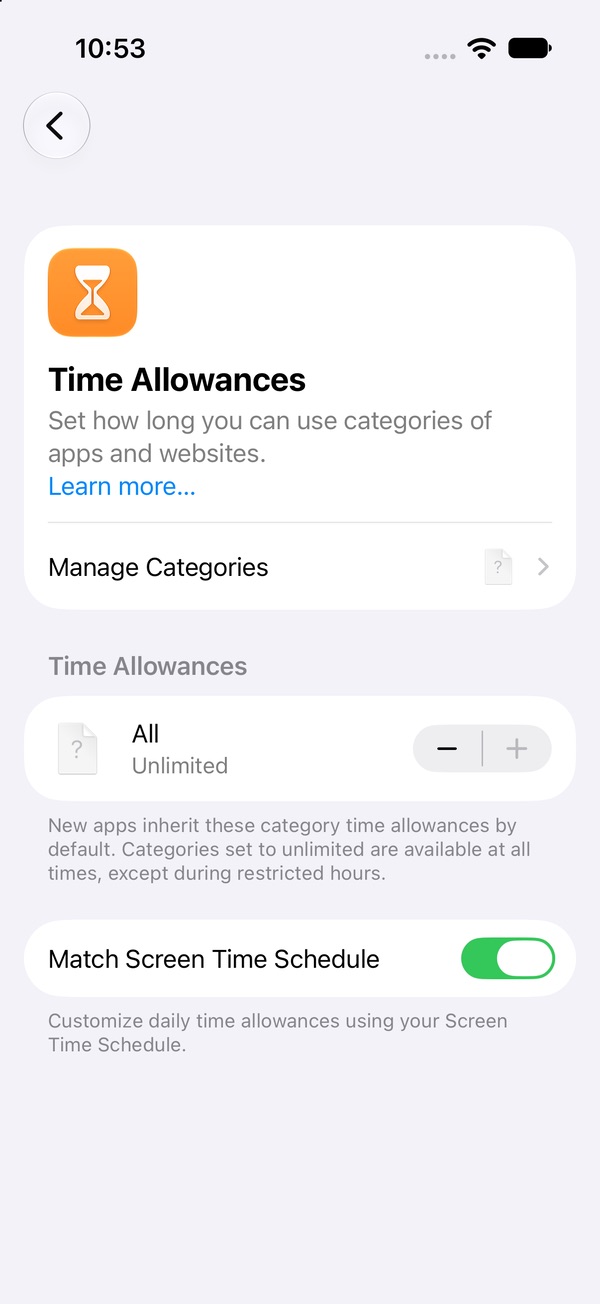
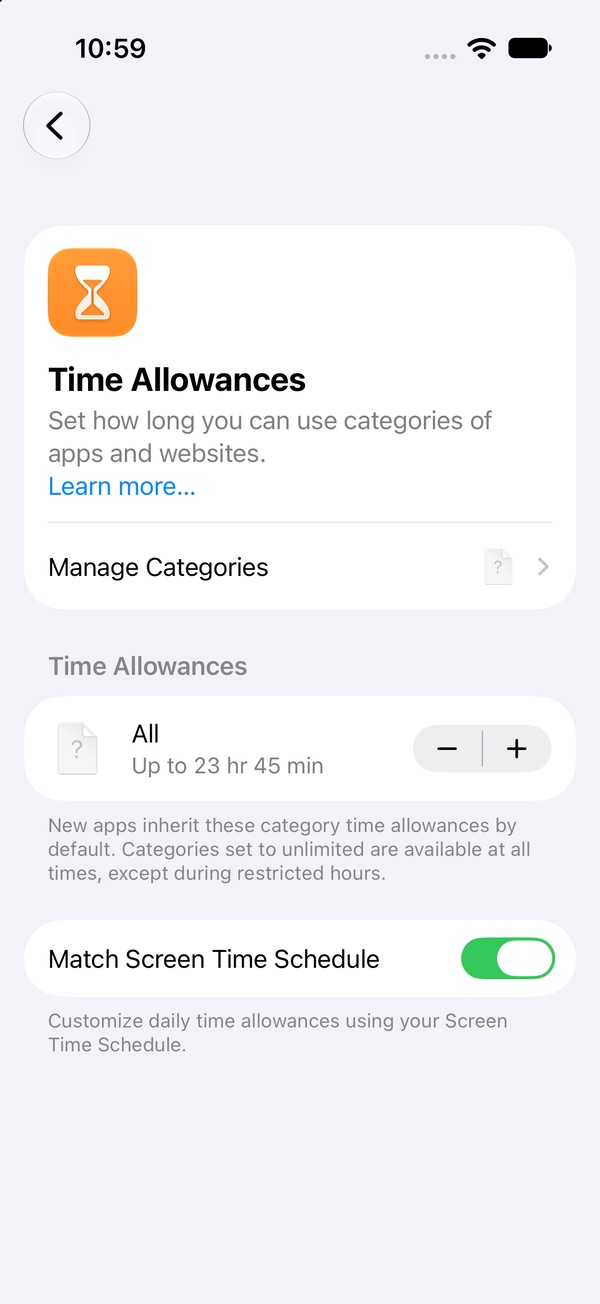
Back on Time Allowances, each category has − and + buttons. Each tap moves 15 minutes; one tap down from Unlimited gives "Up to 23 hr 45 min." That's a lot of tapping to reach 30 minutes, so tap the category itself — Apple says you can drag a slider there instead.
Leave All at Unlimited unless you want a cap on everything. iOS notes that categories set to Unlimited "are available at all times, except during restricted hours."
New apps join their category automatically
iOS says new apps "inherit these category time allowances by default." So if you have a Games allowance, a game you install next month picks it up without you doing anything.
Match Screen Time Schedule: what it does
The Match Screen Time Schedule switch ties your allowances to your Screen Time Schedule (the old Downtime) — "Customize daily time allowances using your Screen Time Schedule." Apple describes it as using Time Allowances during certain times in your schedule; once you've added allowances to time windows, tap a window's name to see them. If you haven't set up a schedule, you can ignore it.
What happens when the time runs out?
We're re-checking the "time's up" screen on iOS 27 and will update this page. For context: on iOS 26 and earlier, Apple said Screen Time limits could be ignored by default once reached — which is the "Ignore Limit" button so many people complain about.
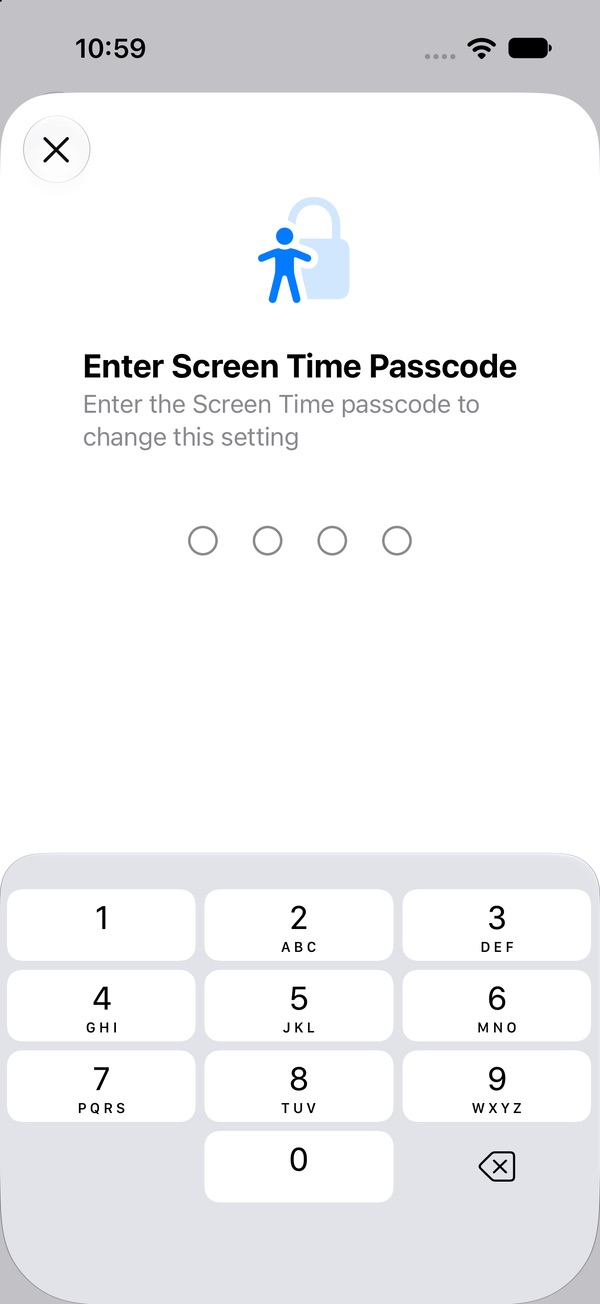
Either way, one thing is certain: if you know how to change the limit, you can. A limit you can change yourself is easy to undo at the exact moment you want to. With a Screen Time passcode on, changing a Time Allowance asks "Enter the Screen Time passcode to change this setting." Have someone else pick the code. Set a passcode that holds →
How to remove a time limit
Settings › Screen Time › Time Allowances › Manage Categories, select the category, then tap Delete (category name) Category.
Counting minutes is a lot of work. Locking isn't.
App & Website Activity, Manage Categories, a Custom category, an app picker, 15-minute taps, Match Screen Time Schedule, a passcode someone else holds — and then a limit that still lets you in for part of the day. Pactroll skips the bookkeeping: pick the apps, tap lock, done. They stay locked until you decide to unlock them, even when Pactroll is closed, and "I feel the urge" gives you a short guided break when you're itching to open one.
Get Pactroll on the App StoreFAQ
Where did App Limits go in iOS 27?
They're Time Allowances now: Settings › Screen Time › Time Allowances. They limit categories, and a Custom category can hold just one app.
How do I put a time limit on just one app, like TikTok?
Time Allowances › Manage Categories › + › Custom. Name it, pick only TikTok, tap Continue, then set the allowance with − and +.
Does a Time Allowance also count the website?
Apple says yes, if the app has an associated website it declares — the allowance applies to both.
How do I remove a time limit on iPhone?
Manage Categories, select the category, then Delete (category name) Category. If a Screen Time passcode is set, you'll need it.
How do I stop myself from just changing the limit?
Lock Screen Time Settings with a passcode someone else types. Then changing a Time Allowance asks for the code.