
Guides › Screen Time
iOS 27 Screen Time changes: where Downtime and App Limits went
3 min read
Updated to iOS 27 and can't find Downtime or App Limits? They didn't disappear — Apple renamed them and reshuffled the menus. Downtime is now Screen Time Schedule. App Limits are now Time Allowances. Here's the full map.
Old name → new name
| Before iOS 27 | iOS 27 | Where (Settings › Screen Time › …) |
|---|---|---|
| Downtime | Screen Time Schedule | Screen Time Schedule |
| App Limits | Time Allowances | Time Allowances |
| Communication Limits | Allowed Contacts | Allowed Contacts |
| Always Allowed | Always Allowed | Always Allowed |
| Use Screen Time Passcode | Lock Screen Time Settings | Manage Screen Time › Lock Screen Time Settings |
| iTunes & App Store Purchases | Installing Apps / Deleting Apps | Apps & Websites › Restrictions |
| — | Apps & Websites (Allowed / Blocked lists) | Apps & Websites |
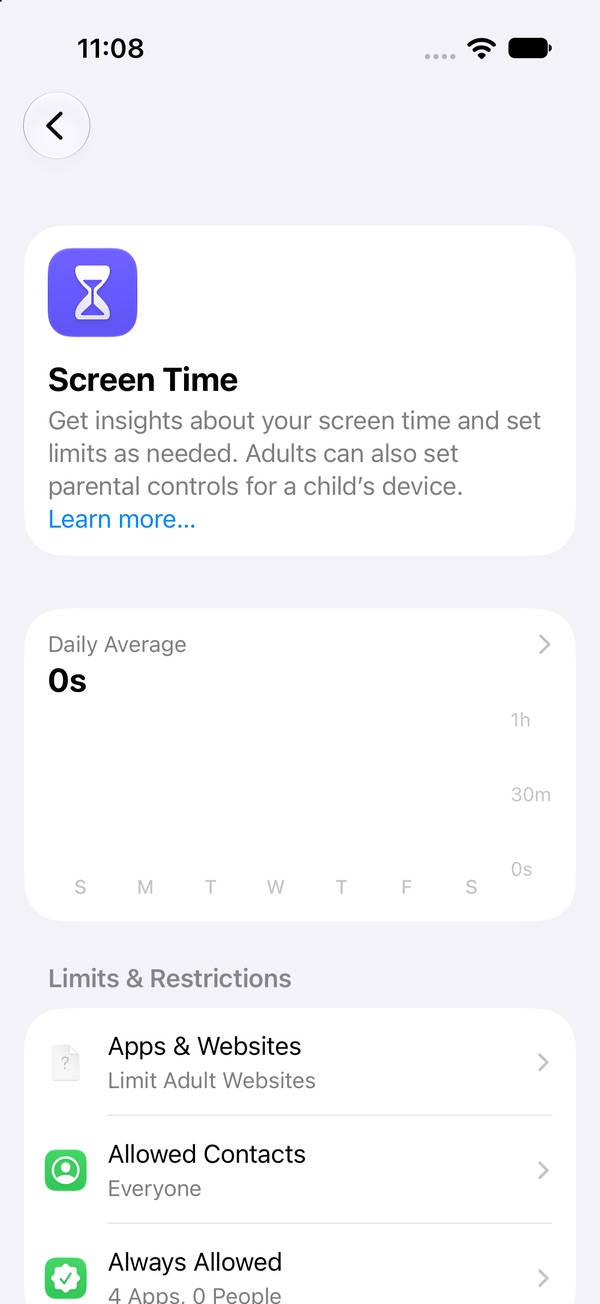
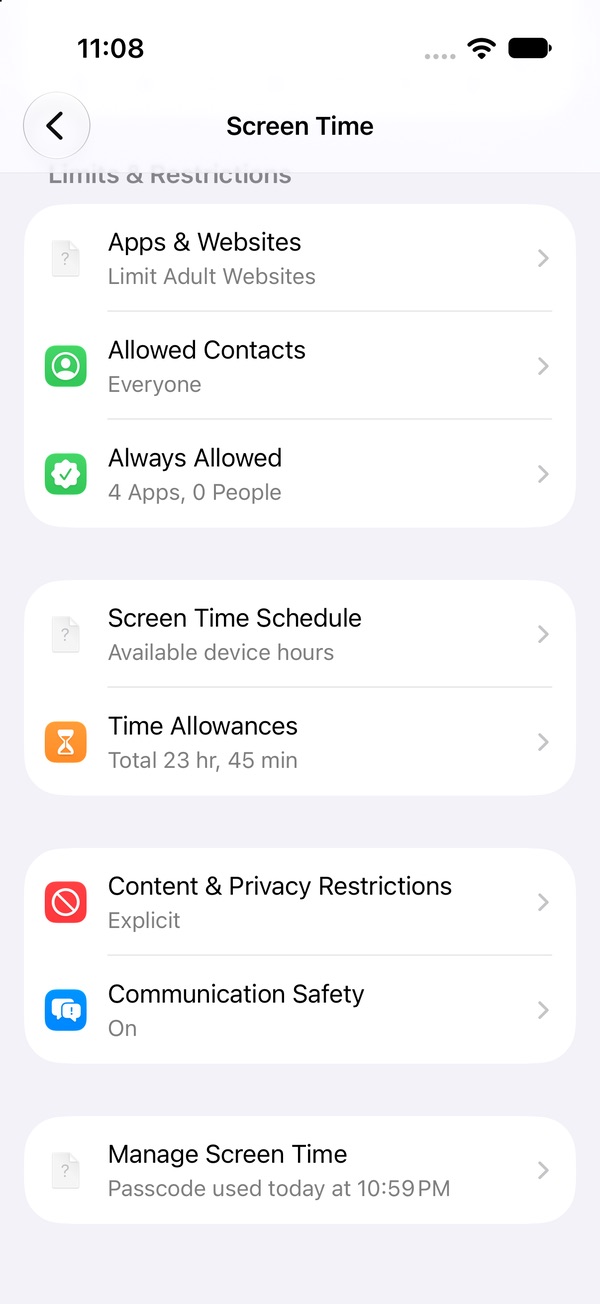
What works differently now
Schedule tells iOS when apps are allowed
Downtime used to be "block everything from 10 PM to 7 AM." Screen Time Schedule flips it: you create time windows (say, 6 AM–11 PM) and tick which categories are allowed inside each one. Outside your windows, only your Always Allowed apps work. You can also make a separate schedule for certain days, like weekends. Set up Screen Time Schedule →
Limits are per category, not per app
Time Allowances limit a category: Entertainment, Games, Social Media — or a Custom category where you pick the exact apps (for example, only TikTok and Instagram). The allowance goes up and down in 15-minute steps, and new apps you install inherit their category's allowance. Set up Time Allowances →
Install and delete controls moved
The switches that stop you from installing or deleting apps are no longer buried in Content & Privacy Restrictions. They're under Apps & Websites › Restrictions. That's the setting that breaks the delete-and-reinstall loop. Stop yourself reinstalling apps →
The passcode lives under Manage Screen Time
To lock all of this, go to Manage Screen Time › Lock Screen Time Settings. If you set the passcode yourself, you can change your own limits whenever you want — so have someone else set it. Set a passcode that holds →
Can't find the new options?
Apple says every Apple device on your account — iPhone, iPad, Mac, Apple Watch, Vision Pro — has to be on version 27 or later to use the newest Screen Time features. One old iPad signed in to the same Apple Account can be the reason. Screen Time also syncs across devices by default (Manage Screen Time › Share Across Devices).
Too many switches? Skip them.
Schedules, categories, restrictions, a passcode someone else holds — it works, but it's a lot of setup for "please keep me out of TikTok." Pactroll does the locking for you: pick the apps, tap lock, done. They stay locked until you decide otherwise, and when the urge hits, Pactroll walks you through riding it out before anything unlocks.
Get Pactroll on the App StoreFAQ
Where is Downtime in iOS 27?
Settings › Screen Time › Screen Time Schedule. You set the hours when apps are allowed instead of the hours when they're blocked.
Where did App Limits go?
Settings › Screen Time › Time Allowances. Use a Custom category if you want to limit one or two specific apps.
Where is the Screen Time passcode?
Settings › Screen Time › Manage Screen Time › Lock Screen Time Settings.
Why don't I see Screen Time Schedule or Time Allowances?
Check that every Apple device on your account is updated to version 27 or later.