
Guides › Screen Time
Lock Screen Time Settings: set a passcode you can't talk yourself out of
Takes about 2 minutes to set up · 6 min read
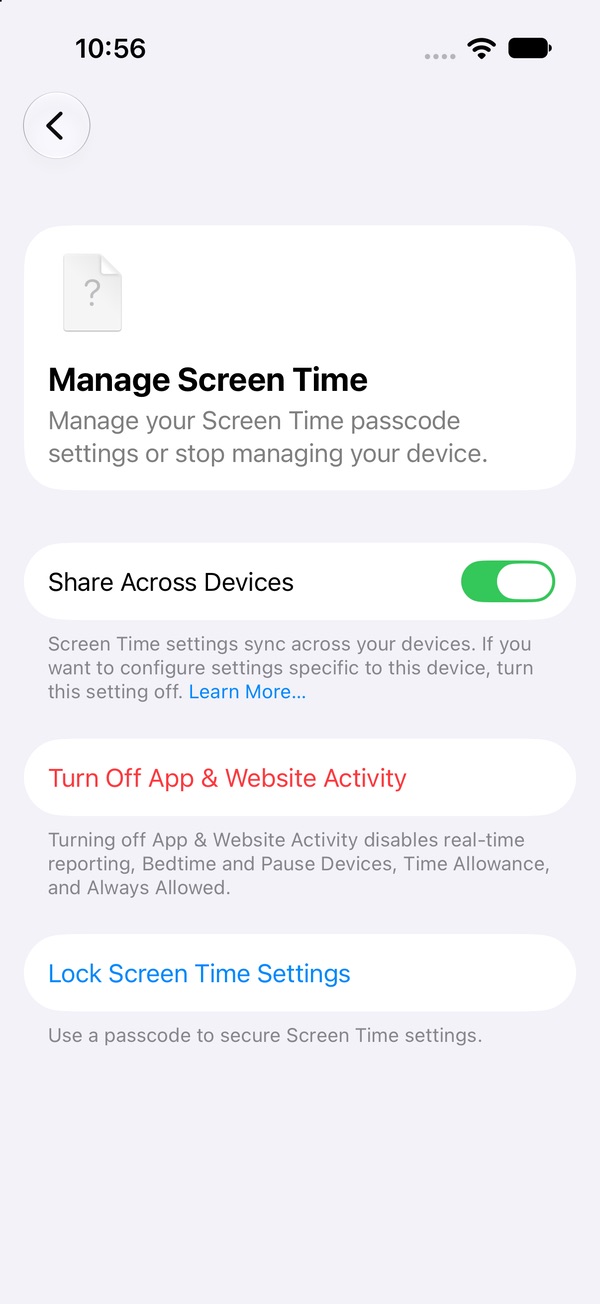
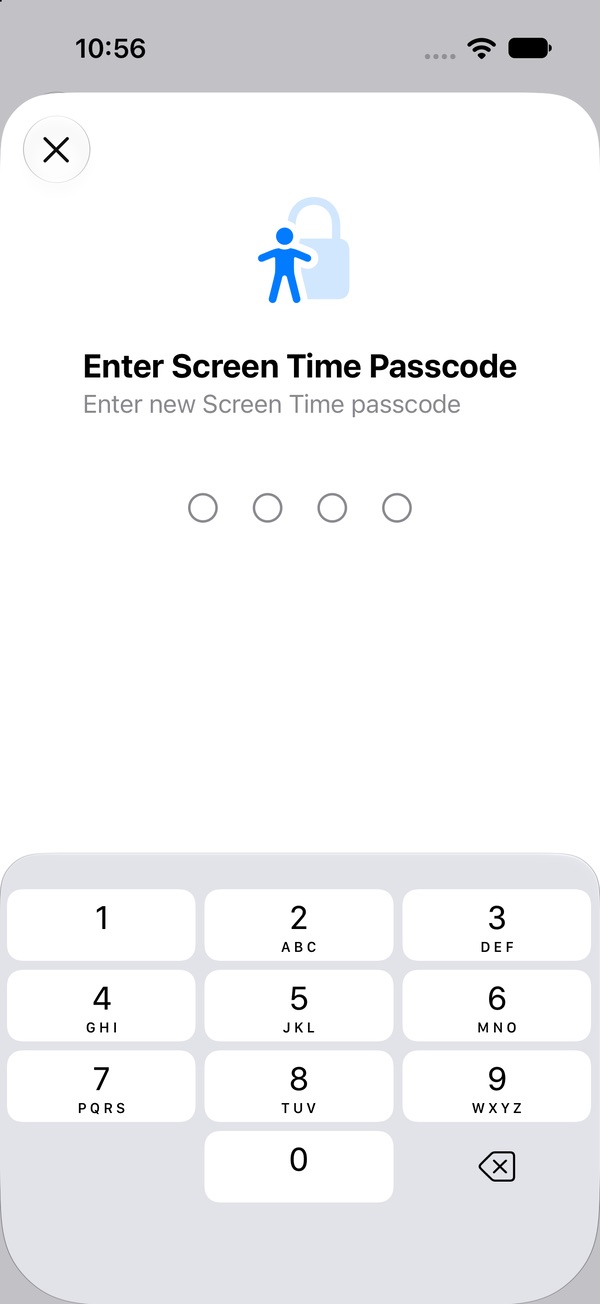
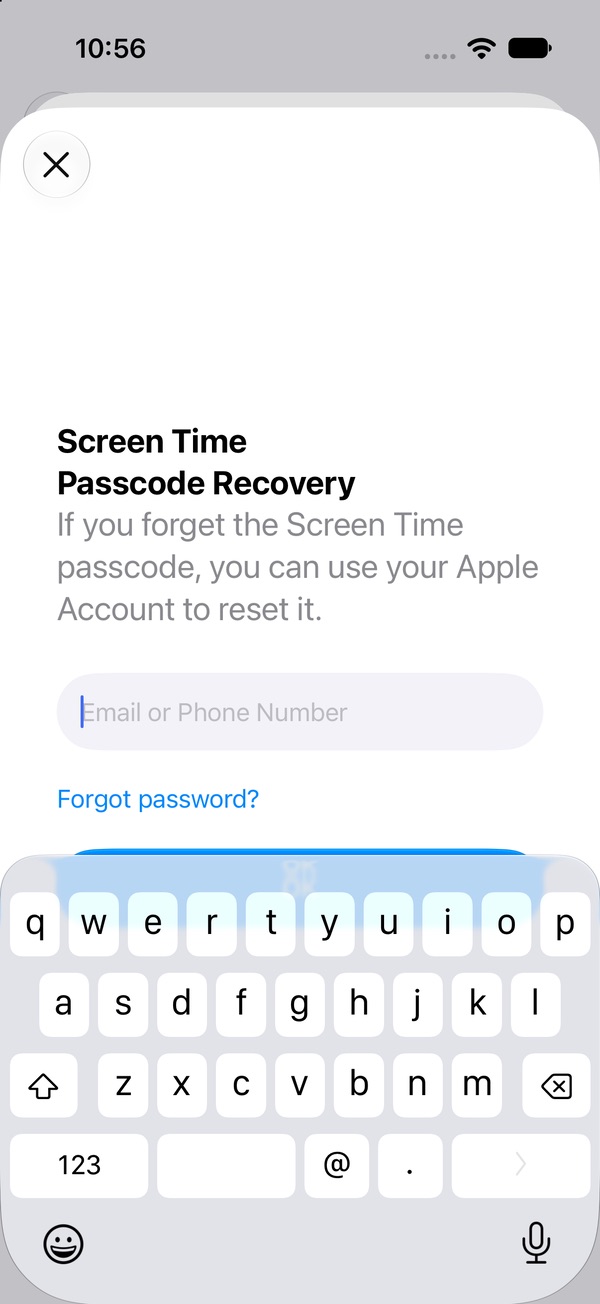
If you know the Screen Time passcode, your limits are suggestions. The setup that holds: go to Settings › Screen Time › Manage Screen Time › Lock Screen Time Settings, hand the phone to someone you trust — a roommate, partner, sibling — and let them type the four digits. Then, at Screen Time Passcode Recovery, have them enter their Apple Account, not yours. Now neither the code nor the reset is in your hands at 1 AM.
Why your own Screen Time passcode doesn't hold
The person who sets a limit at 2 PM and the person who wants "just ten more minutes" at midnight are both you, and they both know the code. A passcode you typed yourself only adds four taps.
Older iOS versions made it worse: Apple's own iOS 26 guide says Screen Time limits could be ignored by default once reached — hence all the complaints about "Ignore Limit." We're re-checking the "time's up" screen on iOS 27 and will update this page. A passcode you don't know is the part that matters either way.
The advice that comes up again and again from people who made Screen Time work: someone else holds the code.
Who should hold the code?
- Someone you see often, so asking for a change is possible — just not instant.
- Someone who won't hand it over because you asked nicely at 11:58 PM.
- Not a note in your own phone, a photo, or a sticky note in your drawer.
Agree on the rule first. For example: "If I ask for a change, I ask in daylight and say why." Then a request isn't an argument, and they don't have to be the bad guy.
How to set a Screen Time passcode on iOS 27
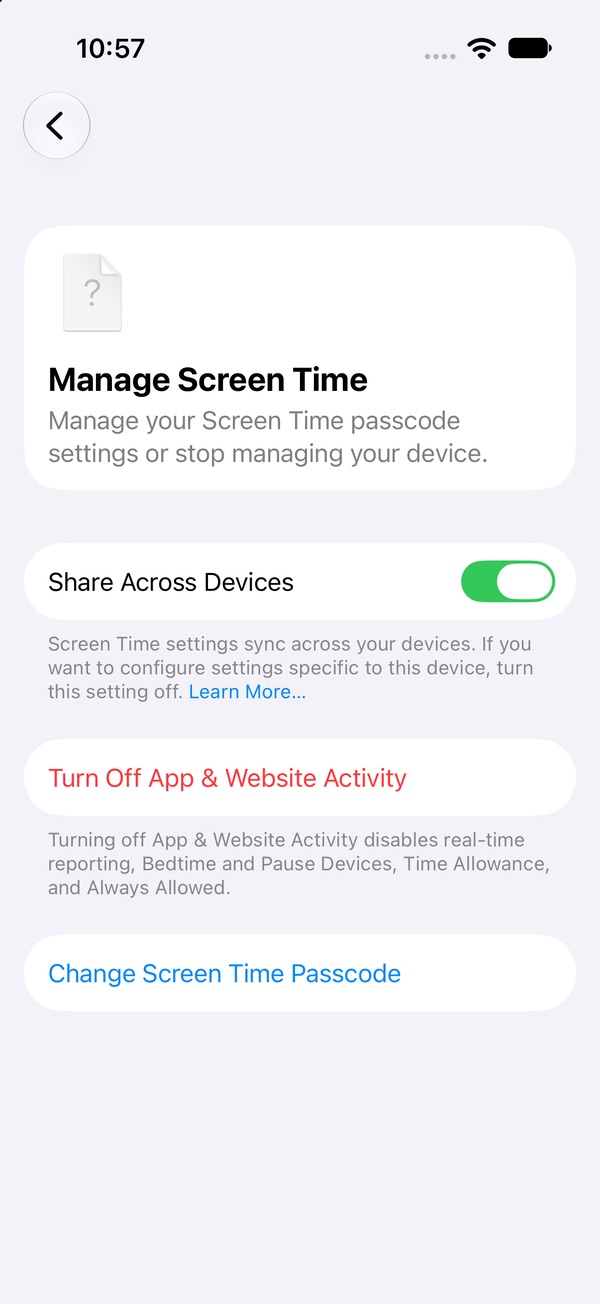
- Open Settings › Screen Time › Manage Screen Time.
- Tap Lock Screen Time Settings ("Use a passcode to secure Screen Time settings").
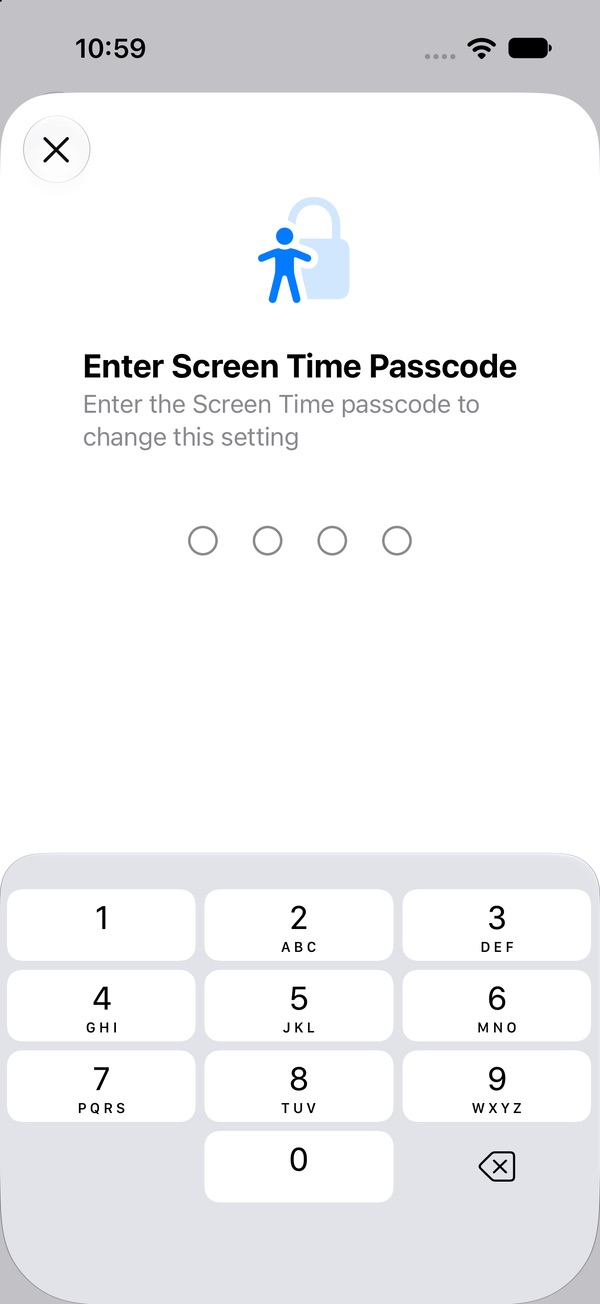
- Hand the phone over. They type a four-digit code at Enter Screen Time Passcode, then type it again.
- On Screen Time Passcode Recovery, they enter their own Apple Account email or phone number. More on this choice below.
- Done. The button now reads Change Screen Time Passcode.
Before iOS 27 this was called "Use Screen Time Passcode." It's the same idea under a new name.
Screen Time Passcode Recovery: their Apple Account, or Skip?
iOS explains it plainly: "If you forget the Screen Time passcode, you can use your Apple Account to reset it." Resetting asks for the email and password of the account entered here. Apple points out this can be a different account from the one signed in on your iPhone. That gives you two sensible options:
Option 1: their Apple Account (recommended)
If the code gets forgotten, they can reset it. You can't — the reset needs their password. This is the version that holds.
Option 2: Skip
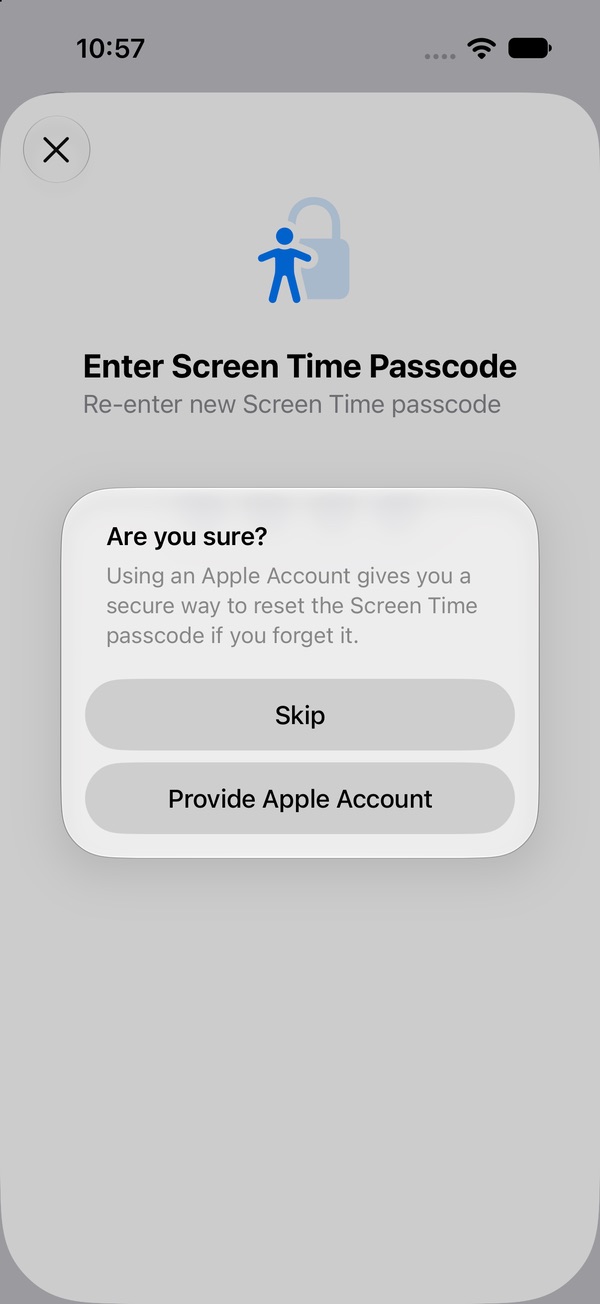
Close the recovery screen and iOS asks "Are you sure?" with Skip or Provide Apple Account. If you skip, there's no recovery account — and Apple's reset steps for a forgotten code rely on one. So a forgotten code can't be reset that way by you or your helper. Apple recommends not skipping for exactly that reason. Only skip if your helper will keep the code somewhere safe.
The option that doesn't work: entering your Apple Account. Then "I forgot the code" is a reset away, any night you like.
What changes once the passcode is on
Your Screen Time settings now ask for the code before they change. For example, changing a Time Allowance brings up "Enter the Screen Time passcode to change this setting." To change or turn off the code later, the person who knows it goes to Settings › Screen Time › Manage Screen Time › Change Screen Time Passcode, which offers Change Screen Time Passcode and Turn Off Screen Time Passcode — both need the current code.
Close the other gaps while they're holding your phone
- Deleting and reinstalling. Turn off Installing Apps and Deleting Apps under Apps & Websites › Restrictions, so you can't reinstall what you deleted — or delete a blocker. How →
- Your other devices. With Share Across Devices on, Apple says limits and schedules apply to your iPhone, iPad and Mac, and a reset passcode updates on those devices too.
- The limits themselves. Set up your Screen Time Schedule and Time Allowances first — after the passcode is on, every change needs the code.
No one to hand your phone to? Fair.
Manage Screen Time, Lock Screen Time Settings, a four-digit code someone else picks, their Apple Account for recovery, and then asking them every time you want to change a limit. It works — if you have that person and they don't mind. Pactroll doesn't need a gatekeeper: pick the apps, tap lock, done. They stay locked until you decide to unlock them, and "I feel the urge" walks you through a short break first; if the urge is still there after two rounds, the apps open for 15 minutes and lock again on their own.
Get Pactroll on the App StoreFAQ
Where is the Screen Time passcode in iOS 27?
Settings › Screen Time › Manage Screen Time › Lock Screen Time Settings. Once it's set, the button reads Change Screen Time Passcode.
How do I make Screen Time harder to bypass?
Have someone else type the code, and at Screen Time Passcode Recovery enter their Apple Account. Then you can't change your limits or reset the code alone.
Can I use someone else's Apple Account for Screen Time Passcode Recovery?
The recovery screen asks for an Apple Account email or phone number, and Apple notes the passcode's account can differ from the one signed in on your device. Resetting asks for that account's email and password.
What if I forget my Screen Time passcode?
Manage Screen Time › Change Screen Time Passcode › Change Screen Time Passcode, then enter the Apple Account email and password used for recovery. That's why Apple recommends not skipping recovery.
Is the Screen Time passcode the same as my iPhone passcode?
No. It's a separate four-digit code that only guards Screen Time settings.