
Guides › Screen Time
Screen Time not working on iOS 27? Fixes for Schedule and Time Allowances
Takes about 5 minutes to check · 7 min read
When Screen Time "doesn't work" on iOS 27, it's usually one of seven things: an older Apple device on your account, Share Across Devices set the wrong way, App & Website Activity turned off, the Schedule switch off, the wrong categories ticked in a time window, no passcode, or the app sitting in Always Allowed. Go down the list below — most people find it in the first three.
The 7-point checklist
- Every Apple device on your account is on version 27 or later.
- Manage Screen Time › Share Across Devices is on if you want the same limits on iPhone, iPad and Mac.
- App & Website Activity is on.
- Screen Time Schedule › Schedule is on.
- In each time window, only the categories you want are ticked under Allowed Categories.
- Lock Screen Time Settings has a passcode — ideally one someone else chose.
- The app isn't in Always Allowed.
Screen Time Schedule not showing? Update every device to 27
If you can't find Screen Time Schedule (the old Downtime) or Time Allowances (the old App Limits), look at your other devices first. Apple's note: to use Screen Time Schedules and Time Allowances you need iOS 27, iPadOS 27, macOS 27, watchOS 27, visionOS 27 or later "on all your Apple devices." In a Family Sharing group, all devices must be upgraded.
An old iPad in a drawer, still signed in to your Apple Account, counts. Update it or sign it out.
Screen Time not syncing to your iPad? Check Share Across Devices
Go to Settings › Screen Time › Manage Screen Time and look at Share Across Devices. iOS describes it as: "Screen Time settings sync across your devices." Apple adds that when it's on, the limits and schedules you set apply to your iPhone, iPad and Mac. When it's off, each device has its own Screen Time settings.
- Limits on iPhone but not on iPad? Turn Share Across Devices on — on both devices, signed in to the same Apple Account.
- Want different rules on each device? Turn it off and set each one up separately.
Same rule as above: Apple says Share Across Devices needs version 27 or later on all your Apple devices.
App & Website Activity is turned off
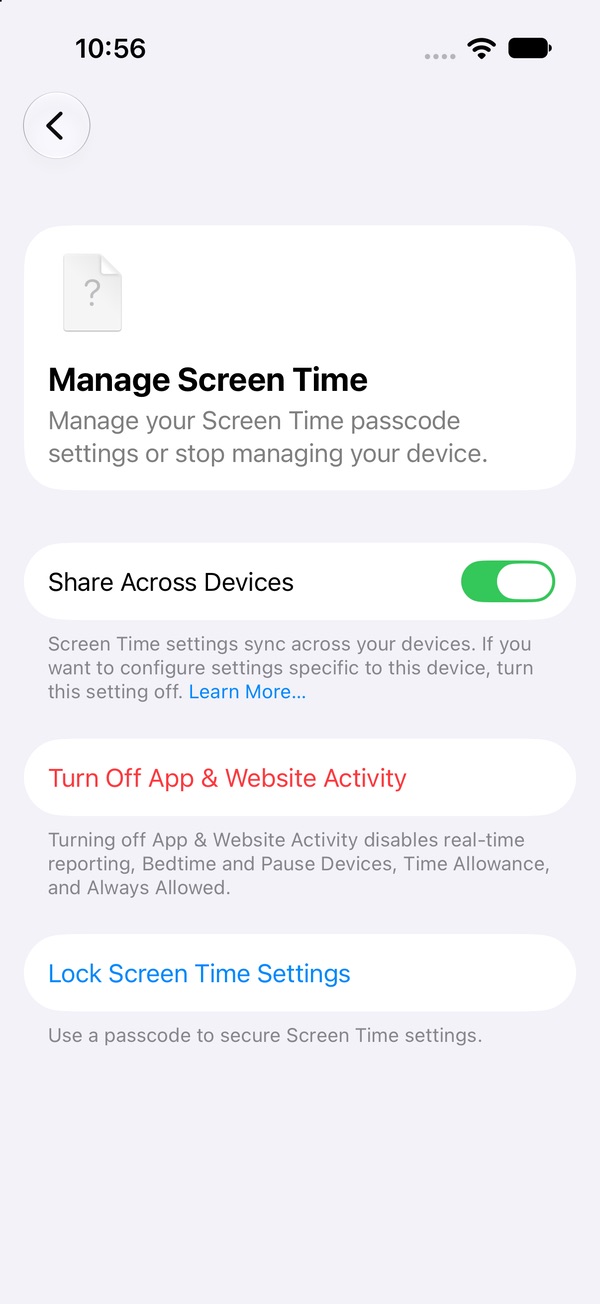
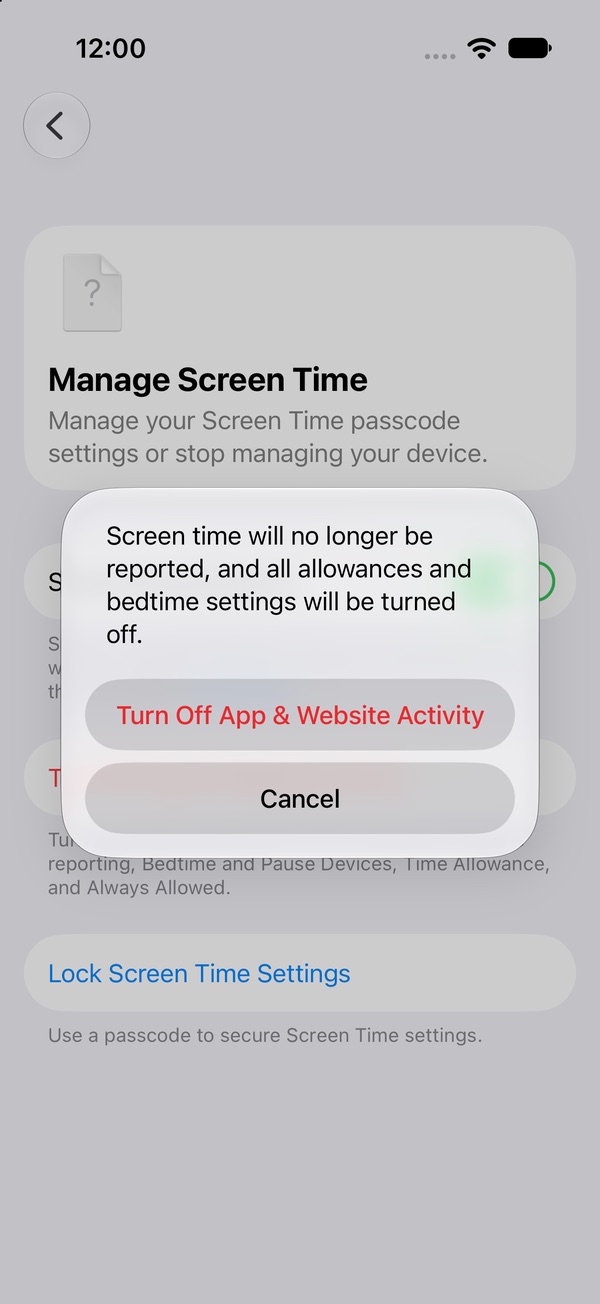
This is the master switch. Under Manage Screen Time, the note below Turn Off App & Website Activity says turning it off "disables real-time reporting, Bedtime and Pause Devices, Time Allowance, and Always Allowed." Tap it and iOS warns that all allowances and bedtime settings will be turned off.
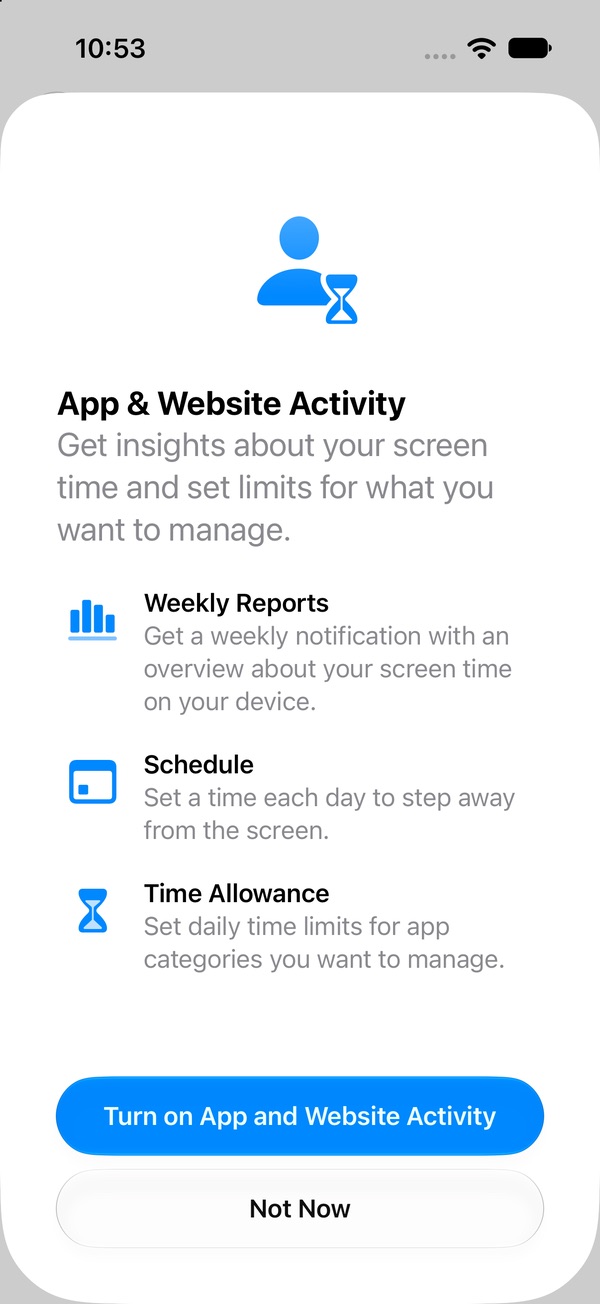
If someone (maybe a tired version of you) tapped it, your limits are gone, not broken. To turn it back on, open Screen Time Schedule, Time Allowances or Manage Screen Time and tap Turn On App & Website Activity. Then check your schedule and allowances are still set the way you want.
Downtime not working: the Schedule switch is off
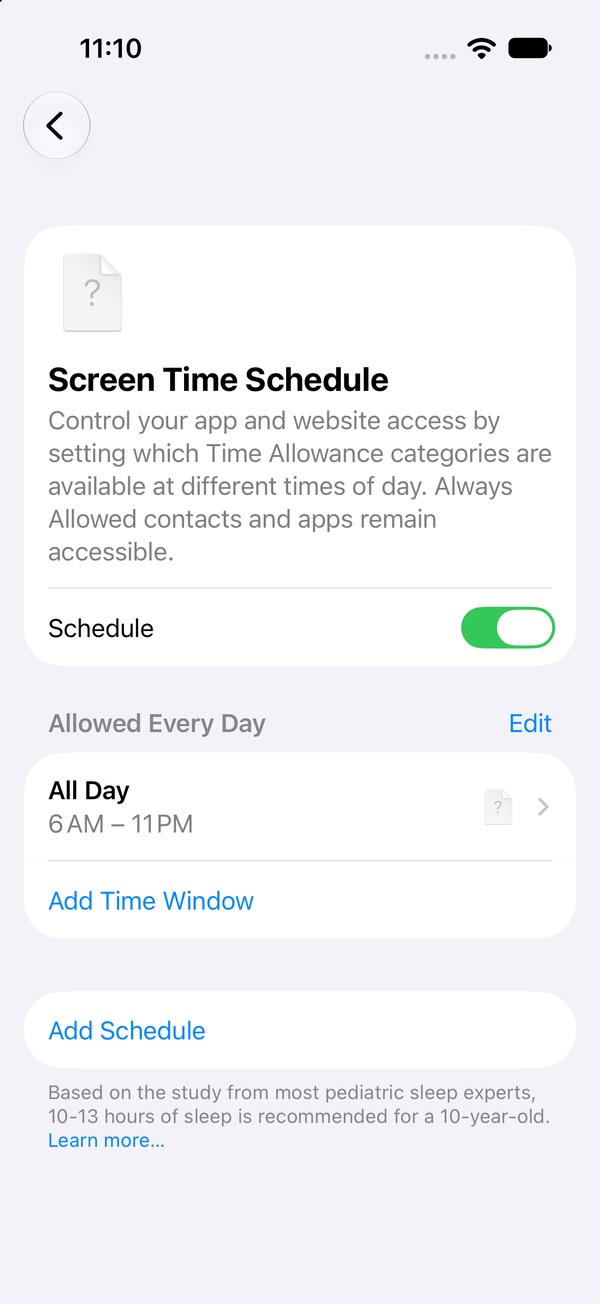
Open Settings › Screen Time › Screen Time Schedule. If the Schedule switch is off, your time windows are greyed out and do nothing. Turn it on. Apple lists switching it off as the way to turn your schedule off, so it's an easy one to flip by accident.
The app still opens during downtime: check Allowed Categories
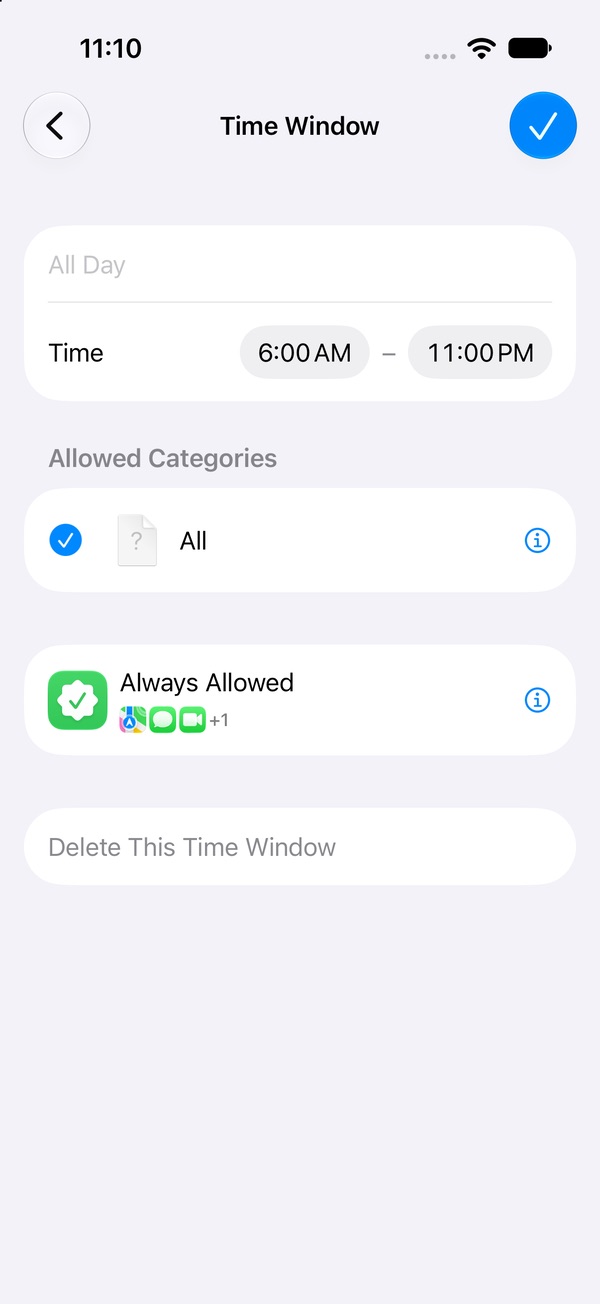
Screen Time Schedule works backwards from old Downtime: each time window says which categories are allowed. So if you made a category for TikTok and ticked it in your 9 PM–11 PM window, TikTok works from 9 to 11. That's the schedule doing its job.
- Tap each time window.
- Under Allowed Categories, untick the category you want off during those hours.
- Tap ✓ to save.
Two more things to look at:
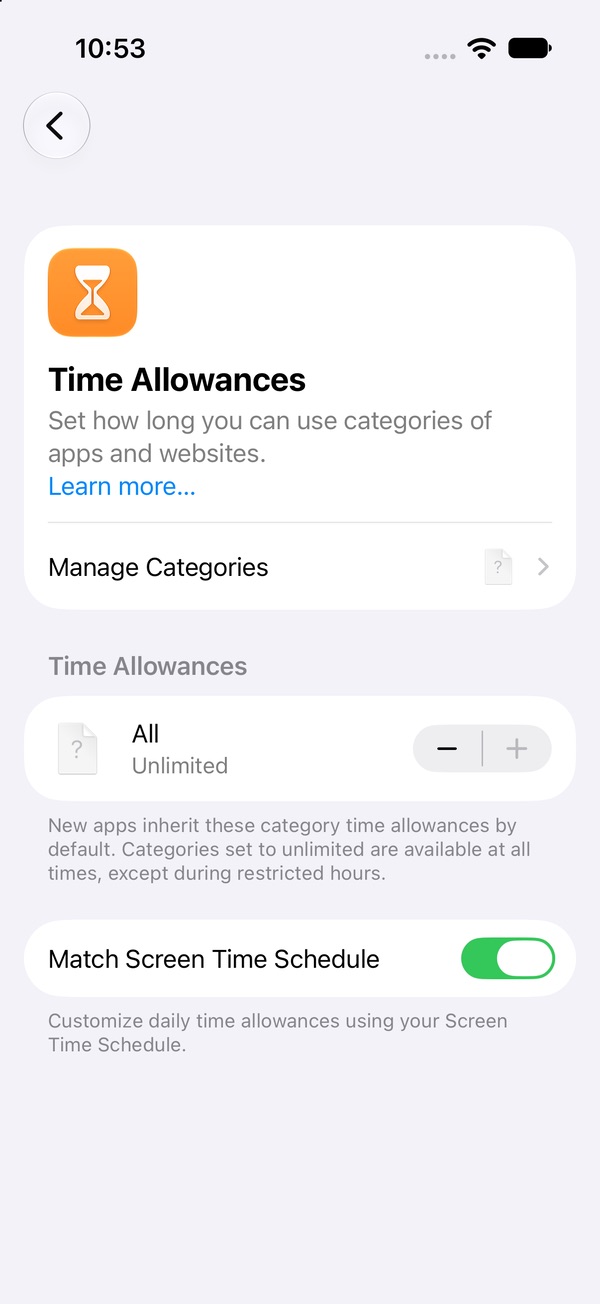
- No categories in the list? You haven't made any. Go to Time Allowances › Manage Categories, tap + and add Social Media, Games, Entertainment or a Custom category with just the apps you pick. How to set Time Allowances →
- Category set to Unlimited? iOS's own note on the Time Allowances page: "Categories set to unlimited are available at all times, except during restricted hours." Unlimited means no daily cap, only the schedule.
You can change the limits too easily: no passcode set
Without a Screen Time passcode, anyone holding the phone can raise an allowance, untick a category or turn the schedule off — including you at midnight. That's the most common reason people say Screen Time "doesn't work."
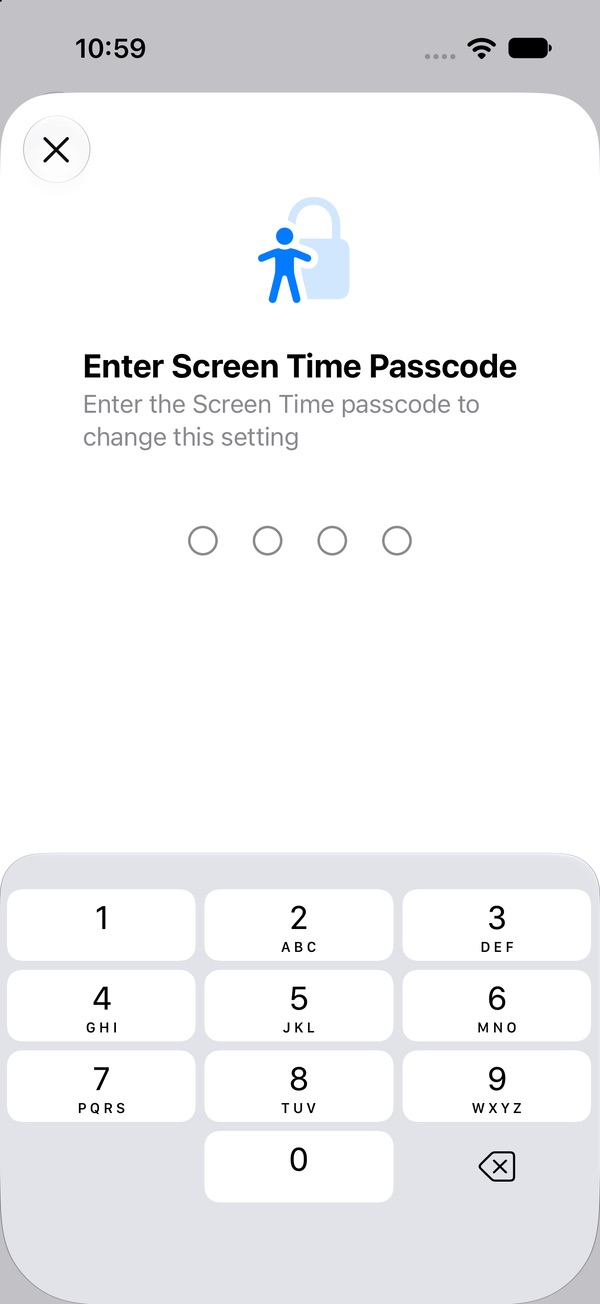
Go to Manage Screen Time › Lock Screen Time Settings and set a four-digit code. After that, changing a Time Allowance asks you to "Enter the Screen Time passcode to change this setting." It only holds if you don't know the code, so hand the phone to someone else for this step. Set a passcode that holds →
The app is in Always Allowed
Apps in Settings › Screen Time › Always Allowed are, in iOS's words, "always allowed, even during bedtime and when device usage is paused." Apple says they work regardless of any Screen Time Schedules or Time Allowances you've set. If you added a feed app there once "just for today," it's still there. Tap Edit, tap ✕ on the app, then ✓. What to keep in Always Allowed →
What about "Ignore Limit"?
On iOS 26 and earlier, Apple's own guide said that "by default, Screen Time limits can be ignored once reached", which is why so many people hit Ignore Limit and kept going. We're re-checking the "time's up" screen on iOS 27 and will update this page.
Seven switches is a lot to babysit
Device versions, Share Across Devices, App & Website Activity, the Schedule switch, Allowed Categories in every window, a passcode someone else holds, an Always Allowed list that slowly grows. Pactroll skips the checklist: pick the apps, tap lock, done. They stay locked until you decide to unlock them, even when Pactroll is closed — and when the urge hits, "I feel the urge" walks you through a short break before anything opens.
Get Pactroll on the App StoreFAQ
Why is Screen Time Schedule not showing on my iPhone?
Apple says it needs version 27 or later on all your Apple devices. Update every iPhone, iPad, Mac, Apple Watch and Vision Pro on your Apple Account, and check that App & Website Activity is on.
Why is my Screen Time not syncing to my iPad?
Check Manage Screen Time › Share Across Devices on both devices. On means your limits and schedules apply to iPhone, iPad and Mac; off means each device has its own settings.
Why is downtime not working on iOS 27?
Downtime is now Screen Time Schedule. Make sure the Schedule switch is on, the app's category isn't ticked in the window you want it off, and the app isn't in Always Allowed.
Why are my Time Allowances missing?
If the menu is missing, update all your devices to version 27. If no categories show up in a time window, make one under Time Allowances › Manage Categories.
Why can I still change my Screen Time limits whenever I want?
Because no passcode is set. Go to Manage Screen Time › Lock Screen Time Settings, and have someone else choose the code.