
Guides › Stop scrolling
Grayscale and 4 other iPhone settings that make scrolling less tempting
Takes about 10 minutes to set up · 6 min read
You don't need willpower for these, just ten minutes in Settings. 1. Turn the screen gray (Settings › Accessibility › Display & Text Size › Color Filters › Grayscale). 2. Move your feed apps off the Home Screen into App Library. 3. Turn off their notifications. 4. Schedule a Focus that silences them. 5. Set a Screen Time Schedule window so they're off at night. Each one takes away a bit of the pull; together they make the phone a lot less sticky.
1. Grayscale iPhone: turn the colour off
Feeds are built to be bright: red badges, saturated thumbnails, colourful icons. Grayscale takes that away and leaves everything working.
- Open Settings › Accessibility › Display & Text Size.
- Tap Color Filters and turn on Color Filters.
- Tap Grayscale.
Does it help? In a 2020 study, Alex Holte and Richard Ferraro had college students switch their phones to grayscale; their average daily screen time dropped by nearly 40 minutes, with less time spent browsing and on social media apps. One study, not a law — but it costs nothing to try for a week.
Turn grayscale on and off with a triple-click
Photos and maps look odd in gray, so set up a quick switch:
- Go to Settings › Accessibility › Accessibility Shortcut and select Color Filters.
- Triple-click the side button (the Home button on iPhone SE) to toggle it.
Apple notes that if you select only one feature, the triple-click turns it on or off straight away. Small catch: the shortcut works for 11 PM you, too. Keep it for the times you need colour, then switch back.
2. Move feed apps off the Home Screen
A lot of opening happens on autopilot: unlock, thumb goes to the same corner, feed opens. Moving the app breaks that path without deleting anything.
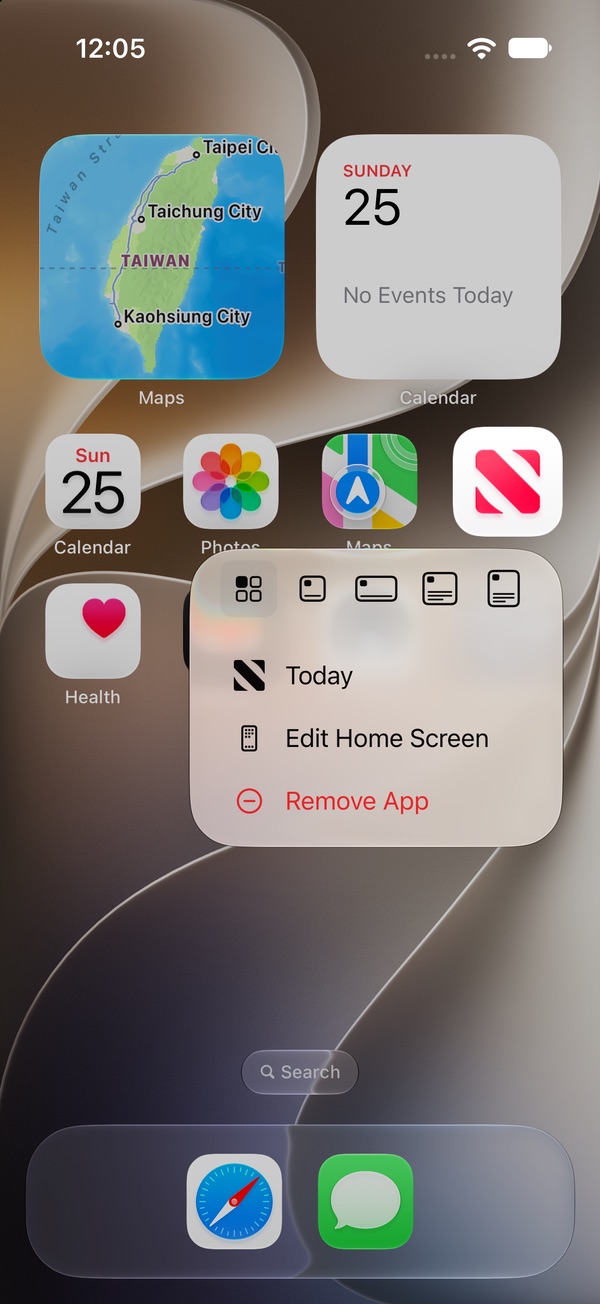
- On the Home Screen, touch and hold the app.
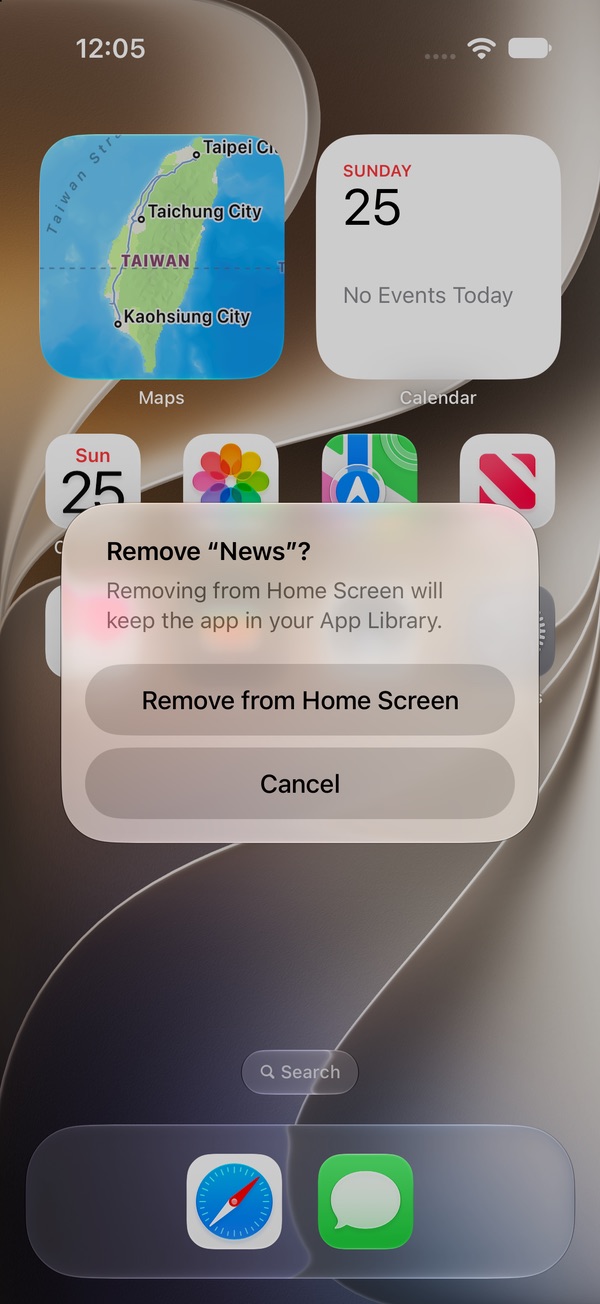
- Tap Remove App, then Remove from Home Screen.
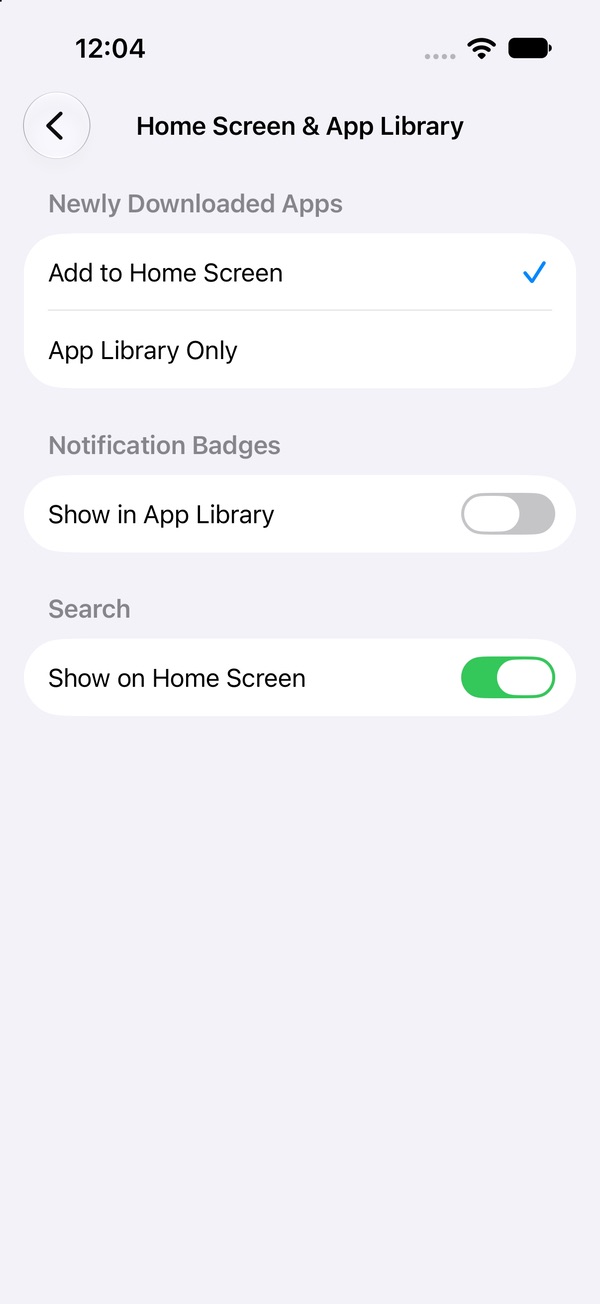
The app moves to App Library (swipe left past your last Home Screen page). It still works from there or from Search; you just have to mean it. To stop new downloads landing on your Home Screen, go to Settings › Home Screen & App Library and choose App Library Only.
3. Turn off notifications for your feed apps
Every "someone posted" ping is an invitation back in. Turn them off per app:
- Open Settings › Notifications.
- Tap the app (they're listed below Notification Style).
- Turn off Allow Notifications.
Not ready to go fully quiet? On the same screen you can turn off Badges (the red number) or send the app to Scheduled Summary, which bundles notifications into a few deliveries a day. Some apps also have their own notification settings, linked at the bottom of that screen.
4. Schedule a Focus that silences them
A Focus filters notifications for a stretch of time. Set one that starts on its own:
- Open Settings › Focus and tap a Focus, for example Personal or Work.
- Tap Apps, then Silence Notifications From, and add your feed apps.
- Tap Add Schedule and pick the times. You can also start it at a location or when you open a certain app.
One more option worth knowing: a Focus can switch to a Home Screen page of your choosing while it's on — a page without the feed apps on it.
A Focus doesn't block anything. The apps still open; they just stop calling you.
5. Add a Screen Time Schedule window
This is the one that actually closes the door. In iOS 27, Downtime is now Screen Time Schedule: you set time windows when app categories are allowed, and outside them only your Always Allowed apps work. A single window from 6 AM to 11 PM means nothing outside Always Allowed opens overnight. Set up Screen Time Schedule →
Make it hold: a schedule you can switch off yourself gets switched off. Add a Screen Time passcode someone else chooses.
How to make your phone less addictive: why these work together
None of these change you. They change the phone. Gray removes the colour hook, App Library removes the reflex path, notifications and Focus stop the phone from starting the session, and the schedule sets hours when the feeds simply aren't there. Each one alone is a speed bump. All five make the scroll something you choose rather than something that happens.
The honest catch: every one of them can be undone in a few taps. That's fine for most days. For the days it isn't, you want something that doesn't move when you push.
Speed bumps help. A lock holds.
Grayscale, App Library, notifications, a Focus, a schedule, a passcode — good friction, five places to undo it. Pactroll locks the apps you pick with iOS Screen Time and keeps them locked until you decide to unlock them, even when Pactroll is closed. When the urge hits anyway, "I feel the urge" walks you through a short break: name what's going on, then five minutes doing something else.
Get Pactroll on the App StoreFAQ
How do I make my iPhone black and white?
Settings › Accessibility › Display & Text Size › Color Filters, turn on Color Filters, then tap Grayscale.
Does grayscale really reduce screen time?
In Holte and Ferraro's 2020 study, college students using grayscale cut average daily screen time by nearly 40 minutes. It makes scrolling less appealing, not impossible.
How do I turn grayscale on and off quickly?
Settings › Accessibility › Accessibility Shortcut › Color Filters. Then triple-click the side button (Home button on iPhone SE).
Does removing an app from the Home Screen delete it?
No. It moves to App Library and still works from there.
What's the difference between a Focus and Screen Time Schedule?
A Focus handles notifications (and can switch Home Screen pages). Screen Time Schedule decides which app categories open at which hours.