
Guides › Stop scrolling
How to stop watching Reels without deleting Instagram
6 min read
You can't switch Reels off — Instagram's help center doesn't describe any way to remove them. What you can do is keep Instagram for friends and messages while making Reels much harder to fall into: a Screen Time allowance for Instagram only, with a passcode someone else holds, notifications off, Instagram's own daily limit and sleep mode, and a Following-only feed. Here's how to set each one up.
Can you turn off Reels on Instagram?
Not according to Instagram's own help pages. They explain how to find Reels (the Reels button at the bottom of the app), not how to hide them. Two things they do offer, which cut down how much you're served:
- Following view. Tap Instagram in the top left of your feed, then Following. It shows posts and reels from people you follow, newest first — no strangers' videos picked to keep you watching.
- Snooze suggested posts. On a suggested post in your Feed, tap Options, then Not interested, then Snooze to pause all suggested posts in your Feed for 30 days.
Neither one touches the Reels tab itself. And Instagram's menus change often, so if a label looks different, look for the same idea nearby.
Instagram's own limits: daily limit and sleep mode
How to set a daily limit on Instagram
Instagram's help center gives this path: go to your profile, tap Menu (top right), then Time management, then Daily limit, and choose an amount of time. The same area shows how much time you've spent on Instagram.
The catch: Instagram calls it a reminder. It tells you when you've hit your time; it doesn't stop you. (Teen Accounts are different — they start with a one-hour daily limit, and a parent can choose to block the app after it.) Use it as a nudge, not a lock.
Sleep mode (formerly quiet mode)
Same place: Menu › Time management › Sleep mode. Pick the days and hours. During sleep mode, Instagram pauses your notifications, auto-replies to messages, shows a reminder to close the app, and gives you a summary when it ends. You can still open the app, so it's best paired with the iPhone settings below.
How to limit Instagram on iPhone without deleting it
1. Give Instagram its own Time Allowance
In iOS 27, App Limits are called Time Allowances, and they work by category. To limit only Instagram, make a category with just that app:
- Go to Settings › Screen Time › Time Allowances › Manage Categories and tap +.
- Choose Custom, name it (say, "Instagram"), pick a colour and icon, tap Continue.
- Tick Instagram only, tap Continue, then choose when it's allowed and how much time it gets per day.
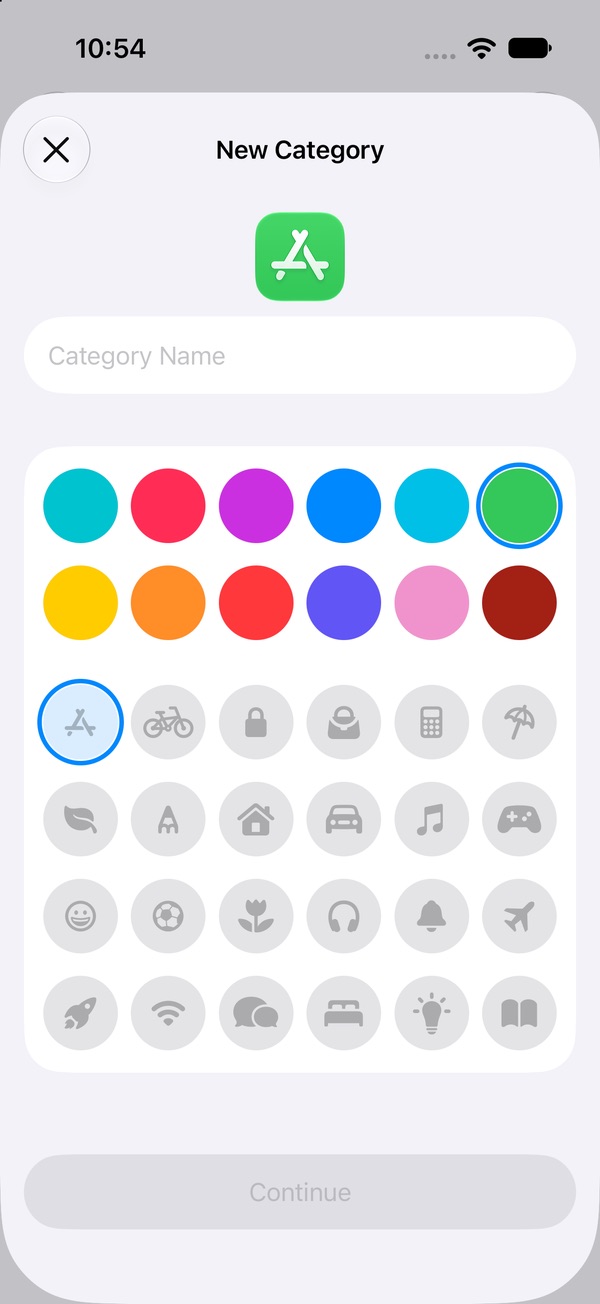
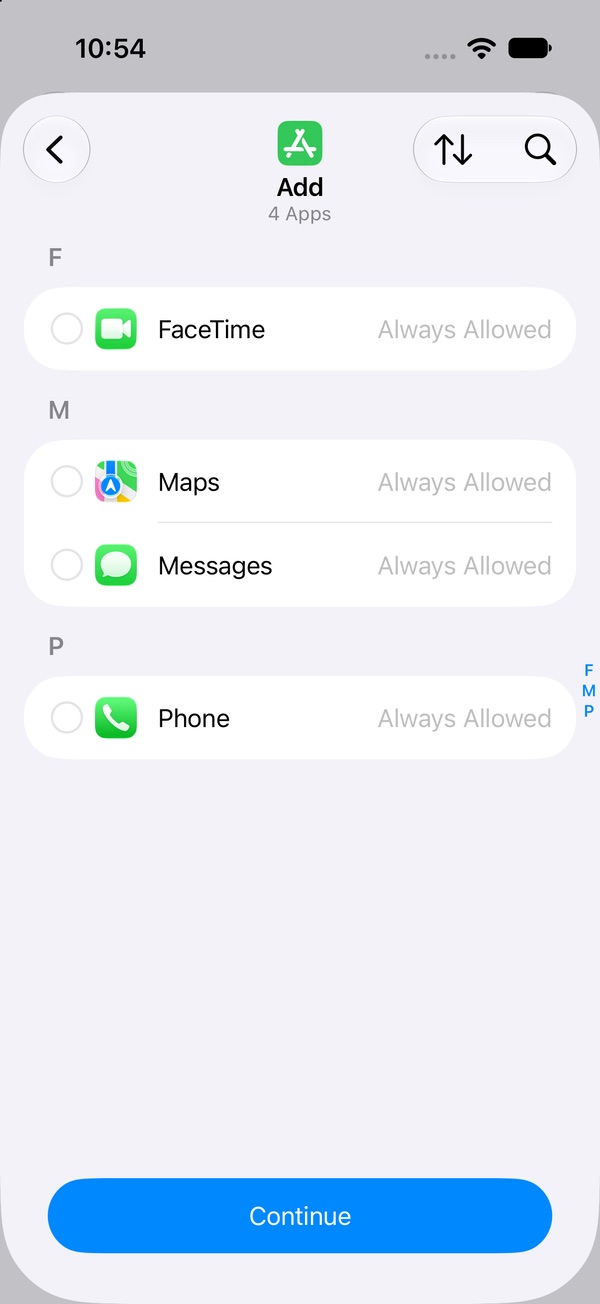
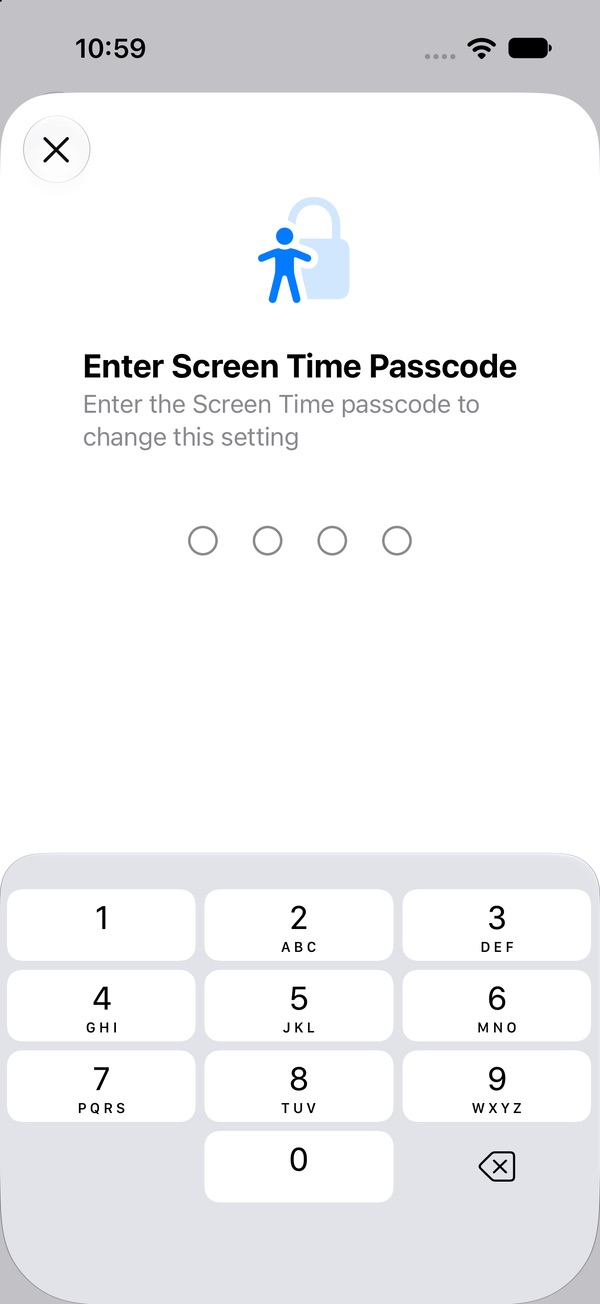
Apple notes that if an app declares a website, the allowance covers both. The part that makes this hold: a Screen Time passcode you don't know. Without one, you can raise the limit in two taps the moment it runs out. We're re-checking the "time's up" screen on iOS 27 and will update this page. Full Time Allowances guide → · Set a passcode that holds →
2. Keep the messages, lose the feed
For many people the reason they can't delete Instagram is the messages, and every "quick reply" lands you one tap from Reels. Two ways around that:
- Move the chats that matter. Ask your closest people to text you or use a chat app you don't scroll. This is the most reliable fix, because it doesn't depend on Instagram at all.
- Reply from a browser. Instagram's help center has messaging instructions for computers and mobile browsers, so you can answer without opening the app. The website has Reels too, and if your allowance covers instagram.com it'll be limited as well — so treat this as a clumsier route, not a loophole.
3. Turn off Instagram notifications
A notification is an invitation back in, and the Reels tab is right there when you arrive. Go to Settings › Notifications › Instagram and turn off Allow Notifications. If you want to keep message alerts, leave them on and switch off the rest in Instagram's own notification settings instead.
4. Close Instagram at night with a Screen Time Schedule
Late evening is when "one more reel" goes on longest. In iOS 27, Downtime is now Screen Time Schedule: you set the hours when categories are allowed. Leave your Instagram category unticked in a late-evening window, or end your last window at bedtime, and it won't open after that. Set up Screen Time Schedule → · How to stop scrolling at night →
5. Bring your own stopping point
Reels have no last page, so the end has to come from you. Decide a number before you open the app — "three reels" — and look away from the screen between each one; breaking the streak is what makes stopping possible. Moving Instagram off your Home Screen into the App Library also helps, because opening it becomes a search instead of a reflex. Why short videos are so hard to stop →
If you still lose an hour to Reels
Some evenings the feed will win. That's one evening, not proof the plan failed. Notice what made it easy — a notification, being tired, the app on your Home Screen — and change that one thing. What to do after a slip → · What to do when the urge hits →
Lock Instagram without deleting it
A Custom category, an allowance, a schedule, a passcode someone else holds, notification switches in two places — it's a lot of setup to keep Reels in check. Pactroll does the locking for you: pick Instagram, tap lock, done. It stays on your phone, locked until you decide otherwise. When you reach for it anyway, "I feel the urge" gives you a short guided break first; if the urge is still there after two rounds, it opens for 15 minutes and locks again on its own. (It locks the whole app, so move the chats that matter first.)
Get Pactroll on the App StoreFAQ
Can you turn off Reels on Instagram?
Instagram's help center doesn't describe a way to turn Reels off. You can switch your feed to Following (posts and reels from people you follow) and snooze suggested posts in your Feed for 30 days, and you can limit Instagram as a whole with Screen Time on your iPhone.
How do I set a daily limit on Instagram?
According to Instagram's help center: go to your profile, tap Menu, then Time management, then Daily limit, and choose an amount of time. It's a reminder, not a lock.
Does Instagram's daily limit block the app?
No. Instagram describes it as a reminder that lets you know when you've spent a set amount of time. For Teen Accounts, a parent or guardian can choose to block Instagram once the limit is reached.
How do I limit just Instagram on iPhone?
In iOS 27: Settings › Screen Time › Time Allowances › Manage Categories › + › Custom. Name it, tick only Instagram, tap Continue and set the time per day. Have someone else set the Screen Time passcode so you can't raise it yourself.
Can I still message people on Instagram if I limit the app?
Instagram's help center has messaging instructions for computers and mobile browsers, so you can reply without opening the app. Apple says a Time Allowance can also cover an app's declared website, so the most reliable option is moving the conversations you care about to texts or another chat app.