
Guides › Stop scrolling
My screen time is 9 hours a day: how to bring it down on iPhone
Takes about 15 minutes · 7 min read
The weekly number lands and it stings: 7 hours a day, 9, 12. Maybe you thought you were busy, and half of it turns out to be scrolling you didn't even enjoy. You're not alone, and the number isn't a grade. It's a map. It shows which apps and which hours take your time. Bring it down by going after those one or two apps, not by trying to use your whole phone less. Here's how, step by step, on iOS 27.
Is 6, 9 or 12 hours a lot?
There's no agreed healthy number for adults. The World Health Organization's screen-time limits are for children under five, and we haven't found an official limit for grown-ups. The total also mixes very different things: maps, messages, work, reading, and the feed you opened "for a second" at midnight.
So ask a more useful question: how many of these hours would you choose again? That's usually where the problem sits. And it's what experiments have tested. In a 2018 study, students who limited Facebook, Instagram and Snapchat to 10 minutes a day each for three weeks reported less loneliness and depression than students who carried on as usual. They didn't stop using their phones. They cut the feeds.
Don't trust the feeling: a 2021 meta-analysis found that people's own estimates of their screen time rarely match what their devices log. Read the report rather than going by feel.
Step 1: Read your week (about 2 minutes)
- Open Settings › Screen Time and tap the Daily Average chart.
- At the top, choose Week. With Share Across Devices on, it also counts your iPad and Mac.
- Under Most Used, look at the top two or three apps. View Options switches between single apps and app categories.
- Scroll down to Pickups (how often you picked up the phone) and Notifications.
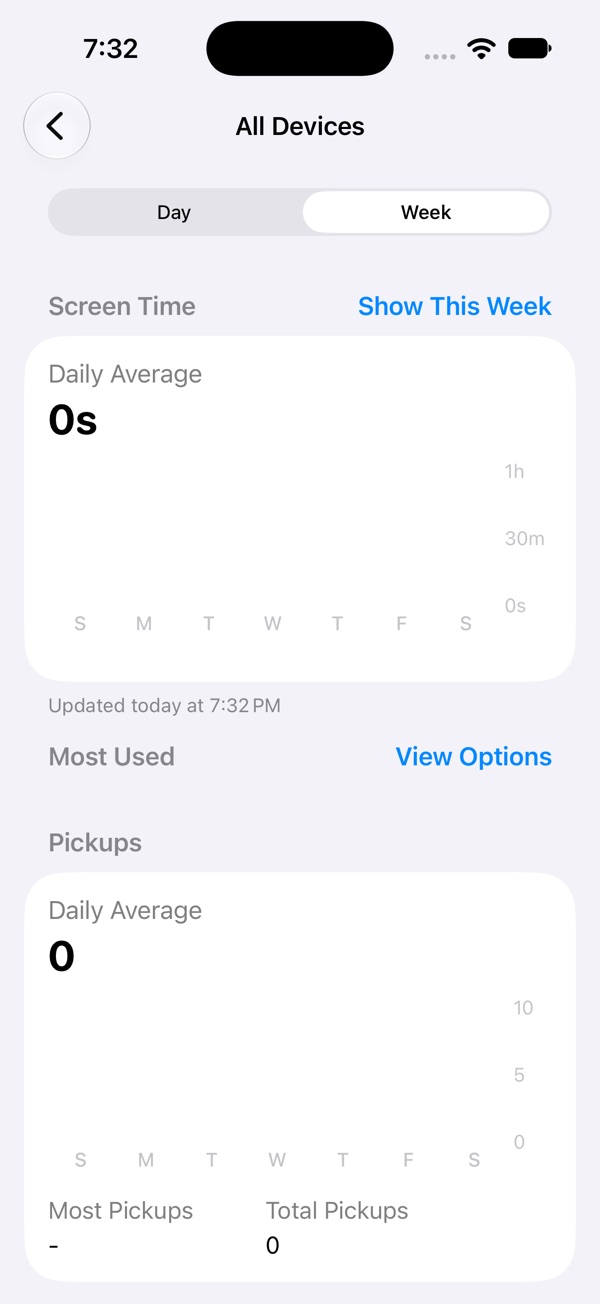
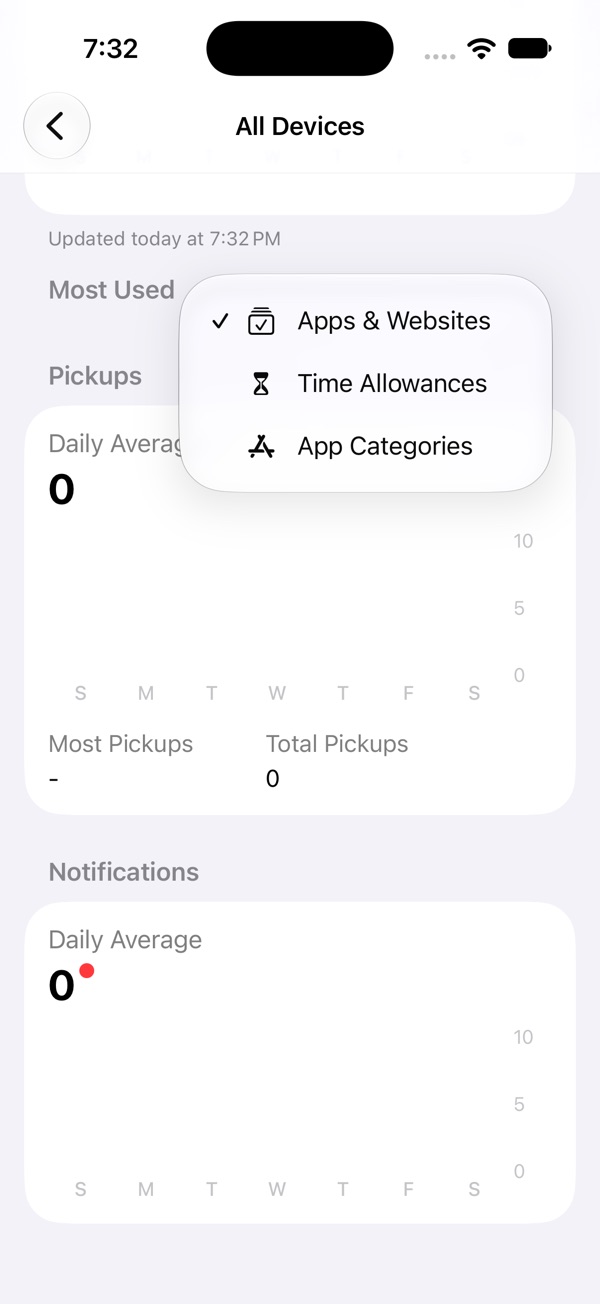
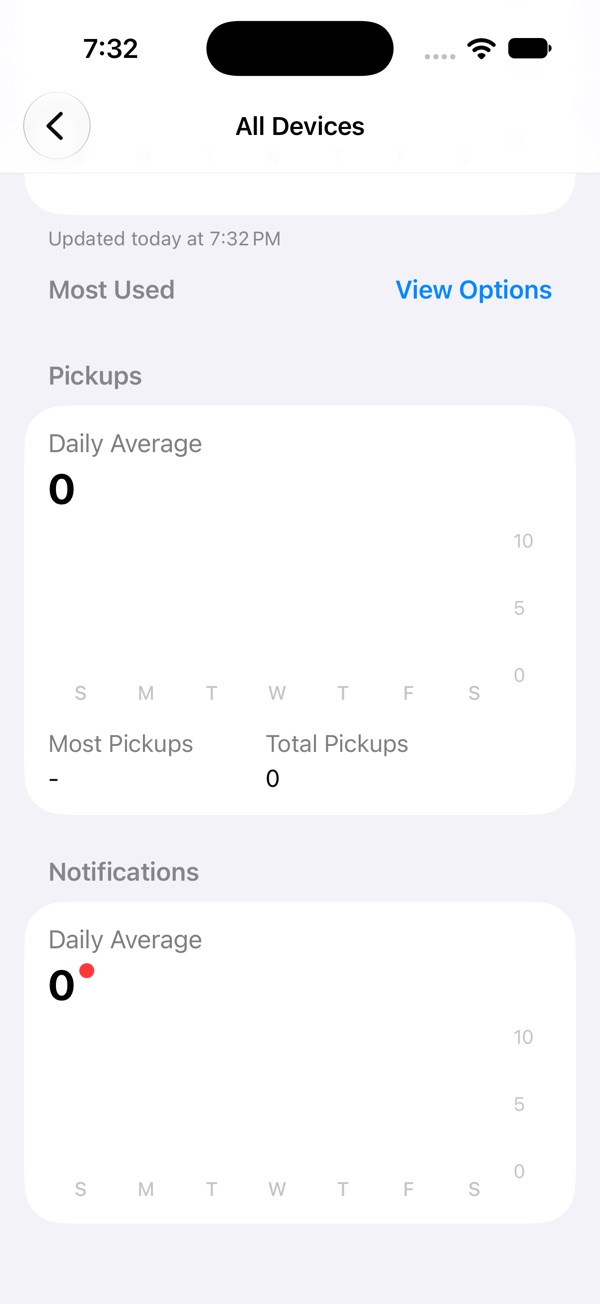
Our screenshots show zeros because they're from a test iPhone with no usage. Yours will have bars and app names.
Now write two things down: the one or two apps that take the most time, and when you use them (switch to Day to see a single day). For most people it's one feed, at one time of day: in bed, after work, or on the commute.
Step 2: Pick one target you can check
"Get my screen time down" is too vague to act on, and the total moves for reasons that have nothing to do with you, like a long trip with Maps running. Pick a target about the app you wrote down, for example:
- "TikTok from 3 hours a day to under 1."
- "No Instagram after 11 PM."
- "Fewer than 50 pickups a day."
One clear target you can see next week beats a big number you'll feel bad about.
Step 3: Lock those apps, not your whole phone (about 5 minutes)
A limit you can wave away at 1 AM isn't a limit. On iOS 27:
- Go to Settings › Screen Time › Time Allowances › Manage Categories, tap + › Custom, and add only the apps from Step 1.
- Set the allowance. 0 min locks them completely. If you'd rather keep a little, pick a small amount, or use Screen Time Schedule to lock them only during the hours you lose.
- Let someone else set the passcode in Manage Screen Time › Lock Screen Time Settings, so you can't change it on a bad night. How →
Full Time Allowances walkthrough with screenshots →
Step 4: Cut pickups and notifications (about 5 minutes)
Many pickups start with a buzz. Turn off notifications for the apps from Step 1 (Settings › Notifications, then the app), and move them off your Home Screen so your thumb doesn't land on them by habit. Grayscale helps some people too. Five settings that make scrolling less tempting →
Step 5: Check again next week
Open the same Week view in seven days. Did the app you targeted go down? Good. Pick the next one. Did a different feed grow to fill the gap? That's common: people delete Instagram and find themselves on X for hours. Add the new app to the same locked category. More on the feed swap →
If the number went up anyway, that's not a reason to give up. Look at which day jumped and why, change one thing, and keep going. What to do after a slip →
Skip the fiddly setup
Steps 3 and 4 work, but they take a custom category, a zero allowance, and someone to hold the passcode. Pactroll does it in one place, using iOS Screen Time. Pick the apps from your report and they lock, even when Pactroll is closed. When you reach for one, "I feel the urge" walks you through naming what's going on and five minutes of something else. If you still want in after two rounds, the apps open for 15 minutes, then lock again on their own.
Get Pactroll on the App StoreFAQ
How much screen time is too much for an adult?
There's no agreed number for adults. The World Health Organization's screen-time limits are for children under five. A more useful test than the total: how many of those hours would you choose again? Time in feeds you didn't mean to open is the part worth cutting.
Where do I see my screen time on iPhone in iOS 27?
Open Settings › Screen Time and tap the Daily Average chart. Choose Week at the top. Below the chart are Most Used (tap View Options to switch between apps and categories), Pickups and Notifications.
How do I reduce my screen time without deleting apps?
Find the one or two apps that take most of your hours, and lock just those: on iPhone, put them in a Custom category under Screen Time › Time Allowances, set it to 0 minutes, and let someone else set the Screen Time passcode. Turn off their notifications too. Leave the rest of your phone alone.
Why is my screen time higher than I thought?
Almost everyone misjudges it. A 2021 meta-analysis found that people's own estimates of their screen time rarely match what their devices log. That's why it helps to read the report instead of going by feel.